
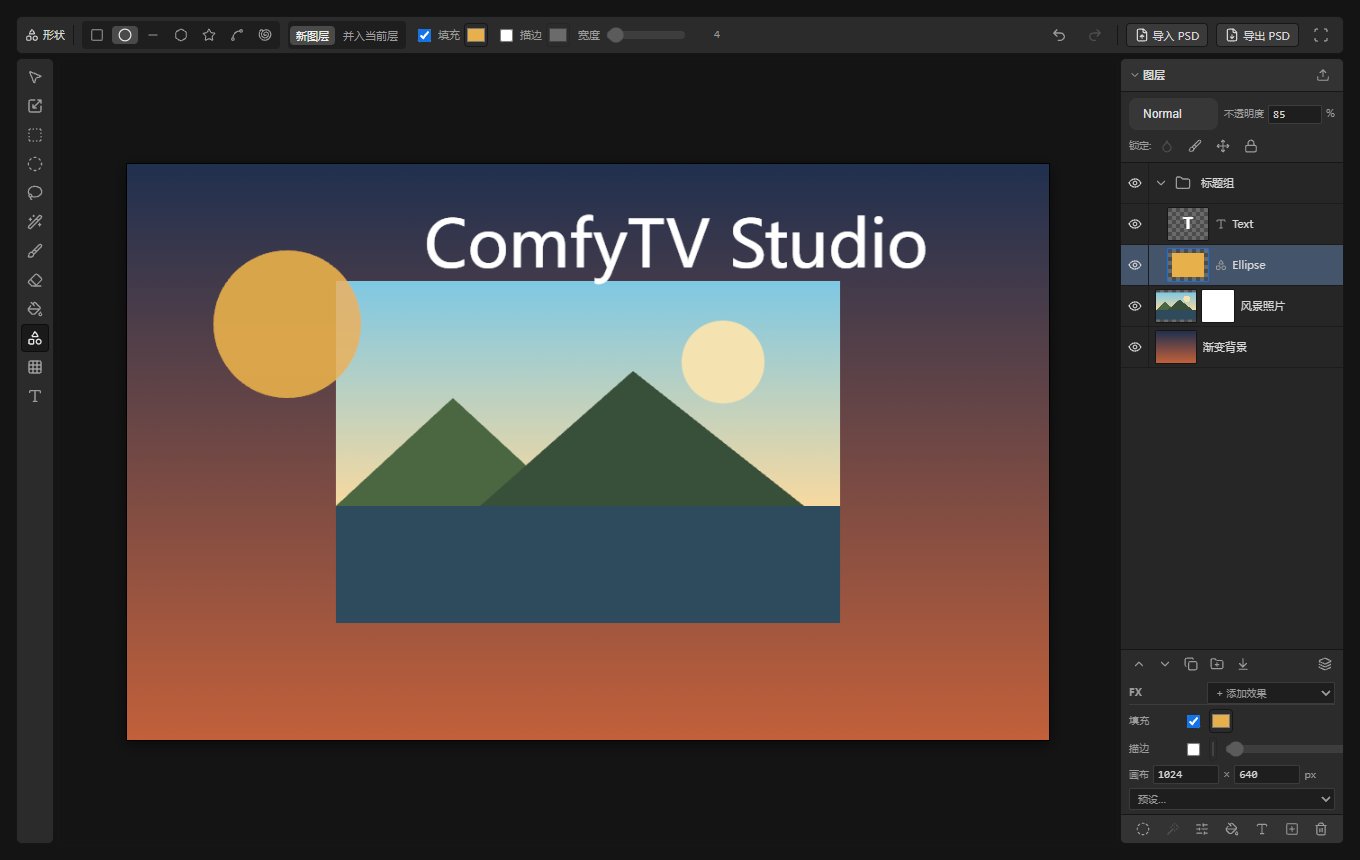
Layer Editor in ComfyTV
What this node does
Layer Editor is a rich in-browser editor that produces images for your graph. You build a multi-layer document on an artboard — paint, mask, add shapes and text, transform and warp — and the editor captures the flattened composite (and, when you have several layers, a per-layer batch) as ComfyTV image snapshots. Nothing runs on the GPU; all editing and capture happen live in the browser, so there is no ▶ Run wait for the drawing itself. Because it sits in theComfyTV/Input category, it is a starting point: draw or assemble something and feed it downstream to generation, editing, or compositing stages. Its outputs are ComfyTV snapshots, not native tensors — insert a Bridge to feed native ComfyUI nodes (bridges docs).
When to use it
- Assemble a rough composite (background + subject + logo) before sending it to an edit or inpaint stage.
- Paint a precise mask by hand — brush onto a layer’s mask channel, use the magic wand, or convert a selection.
- Add title text, shapes, or annotations to an image without leaving ComfyTV.
- Bring in a PSD, edit its layers, and export the result — or export your work back out as a PSD.
The editor
The card is a three-zone editor with a top toolbar, a left tool strip, the canvas, and a right layers panel. A maximize button (top-right) blows it up to fullscreen; the same button toggles back. Rulers. Pixel rulers run along the top and left of the canvas. They follow pan and zoom, adapt their tick density automatically (labels never overlap, finer subdivisions appear as you zoom in), and a small arrow marker tracks the pointer on both axes. Guides. Drag out of the top ruler for a horizontal guide, out of the left ruler for a vertical one. Drag a guide to reposition it, drag it off the canvas to delete it — every step is undoable. Guides snap the transform tool, persist with the document, and round-trip through PSD export/import as real Photoshop guides. The editor engine is the standalone Pentrado project — try it in your browser at pentrado.com. Tool strip (left). One button per tool: Select (move layers), Transform (scale/rotate), Marquee and Ellipse marquee, Lasso, Magic wand, Brush, Eraser, Paint bucket, Shape, Warp, and Text. Context toolbar (top). Shows the active tool’s name and its options, which change per tool:- Brush / Eraser — a Content vs Mask target toggle (paint the pixels or paint the layer’s mask), plus size (2–400), hardness (0–1), opacity (0–1), and a color swatch (color shows for the brush on content).
- Shape — pick a kind: rectangle, ellipse, line, polygon, star, arc, spiral. Choose New layer vs Combine into the active layer; polygon/star expose sides (3–24), star a point ratio, spiral turns; toggle fill and stroke with their colors and a stroke width (1–100).
- Selection tools (marquee/ellipse/lasso/wand/bucket) — the wand/bucket expose threshold (0.01–1), anti-alias, and contiguous; other selection tools expose a radius and selection-modify actions feather / grow / shrink / border, plus Fill and Stroke the selection with the current color.
- Transform — Apply or Cancel the pending scale/rotate.
- Warp — a mesh warp with a 3×3 / 4×4 / 5×5 grid and Apply / Cancel.
Workflow / step by step
- Drop the Layer Editor node onto the canvas. It opens with a blank artboard (default 1024×1024; the size is stored internally).
- Add a base layer — upload an image or add one from the asset library via the layers panel.
- Build up: paint on a new layer, add a shape or text layer, or bring in more images. Reorder and set blend mode/opacity per layer.
- Refine with masks and selections — brush onto a layer’s Mask target, or make a selection with the marquee/lasso/wand and feather/grow it.
- Transform or warp pieces into place; Apply when happy.
- The editor continuously captures the composite. The flattened result flows to image; when the document has more than one layer, a per-layer batch flows to images.
- Connect image (or images) downstream, or Export PSD to keep an editable copy.
Inputs and outputs
The document itself (
layer_state), the artboard width/height, and the capture URLs are stored internally on the node and are not sockets you wire.
Tips
- The Content vs Mask toggle is the heart of hand-masking: switch to Mask and brush white to reveal / black to hide, without touching the pixels.
- Import PSD brings a layered file in with its layers intact; Export PSD sends your document out as a real PSD you can reopen elsewhere.
- Undo/redo cover editing steps — use them freely; the layers panel locks (like lock-alpha) prevent accidental paint on a finished layer.
- The per-layer images batch only appears once you have two or more layers, so a single-layer document just outputs the flattened image.
Related nodes
- Storyboard Editor — reuses this same editor engine, one instance per shot board.
- Image Edit / Inpaint — natural downstream stages for a composite or hand-painted mask.
- Bridge (from Image) — convert the capture to a native ComfyUI
IMAGEfor core nodes.