
The same surface that ships in _preset.json is editable here. The sidebar is meant for end users who want to tweak the shipped defaults.
Opening the editor
- On the left of the ComfyUI canvas, click the ComfyTV tab in the sidebar.
- Click any ComfyTV stage on the canvas (Image Stage, Inpaint, Upscale, …). The sidebar shows that stage’s currently-selected workflow.
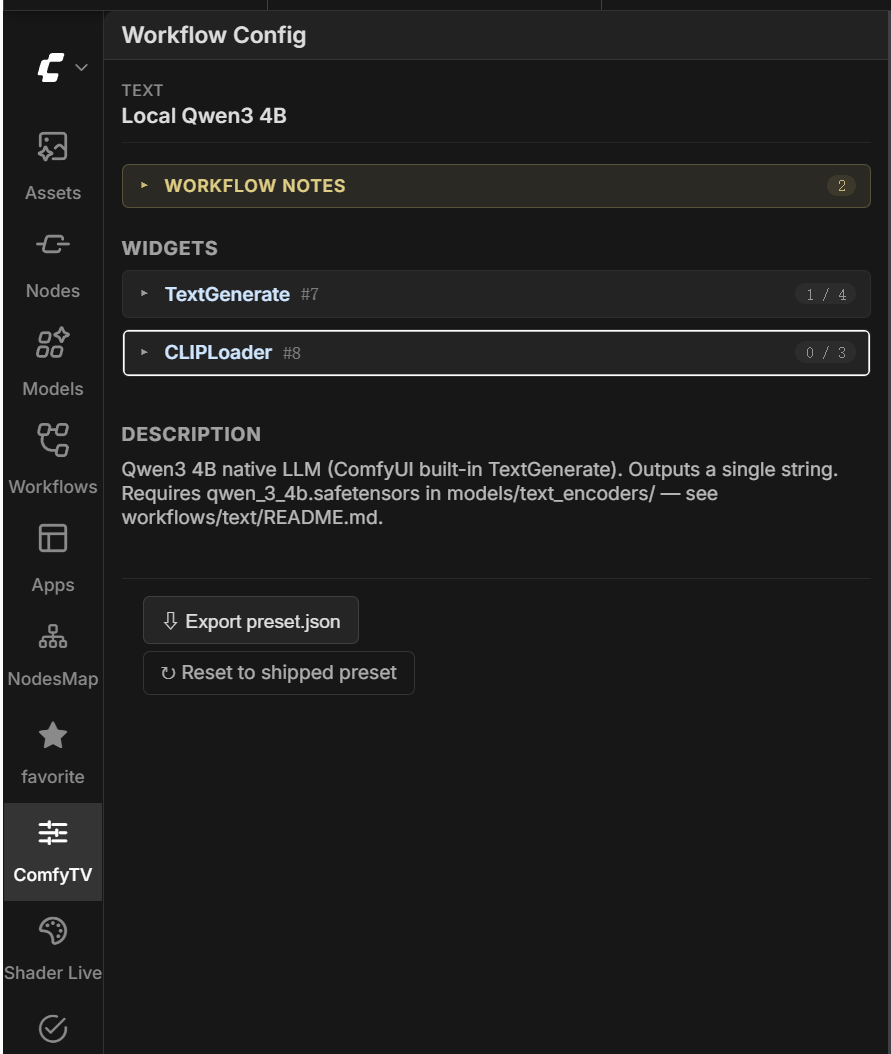
description field.
The sidebar stays empty when the selected stage has no workflow combo (Crop / Rotate / Mirror transform stages, Load Image / Load Video loader stages). Selecting them shows the empty state.
The widget list
Under the workflow notes you’ll see every editable widget in the workflow, grouped by node — each node is a collapsible card. The node header shows the node title,(node type), #id, and a bound / total count on the right.
Each widget row has three pieces:
.<widget name>— e.g..seed,.text,.filename_prefix.- Value editor — the widget’s native input control (number box / text box / dropdown / toggle). Editing here means “replace the workflow’s factory value with this constant”. When the row is bound to a stage input (the dropdown shows anything other than
(use this value)), the value editor is greyed out — at run time the value comes from upstream instead. - Bind to: — see the next section.
Binding options (the Bind to dropdown)
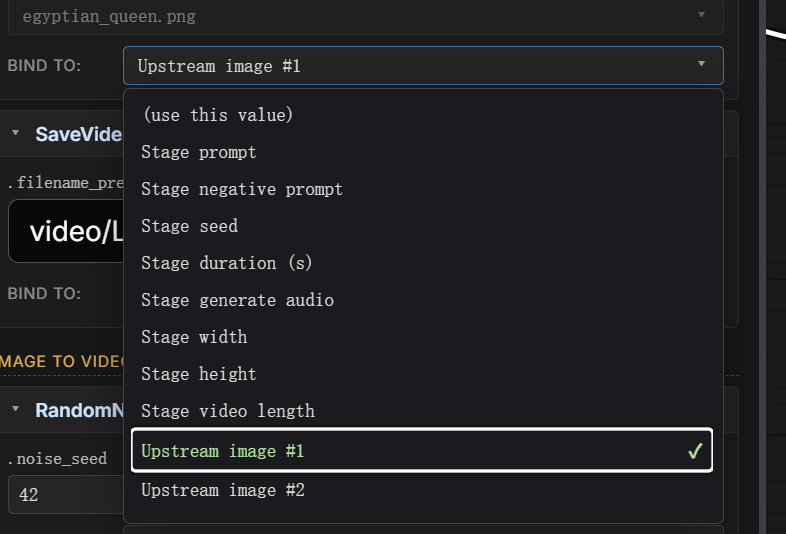
For a CheckpointLoader’s
ckpt_name, pick (use this value) and type the model filename in the Value editor. For a KSampler’s seed, pick Stage seed — that’s all; the runtime generates a fresh random seed each run.
Saving and validation
Editing a value or changing a binding saves immediately. The wire-validation indicators on every stage on the canvas re-run after each save; you can see if a change affected upstream sockets right away. A save that fails shows an inline error.Editing the workflow itself
The sidebar only edits bindings. To change the workflow itself (rename a node, add a step, swap a model loader), edit it in ComfyUI’s main canvas and save. For a 🔗 linked workflow that’s all there is to it — it lives in ComfyUI’s own library. For an uploaded/dropped one, save back over the file inuser/comfytv/workflows/<kind>/. Either way ComfyTV notices the file changed and re-reads it — the new structure is immediately usable, no restart needed. Existing bindings keep working as long as the node IDs they reference still exist.
Exporting as a shareable preset
At the bottom of the sidebar there’s an ⇩ Export preset.json button. Click it to download the current bindings + metadata as a JSON file named<workflow-slug>_preset.json.
The file you get is the standard _preset.json format (see custom-workflows.md). Typical flow:
- Add a workflow — 🔗 link, ⬆ upload, or drop a JSON into the library folder (see custom-workflows.md).
- Open it on a stage, prep it, and tweak bindings in the sidebar until you’re happy.
- Click Export preset.json.
- Save the downloaded file next to the workflow JSON, named
<name>_preset.json. - Share the pair (
<name>.json+<name>_preset.json) with someone else. On their first selection of this workflow on a stage, your defaults are auto-applied.
Reset to the shipped preset
Next to Export preset.json at the bottom of the sidebar there’s a ↻ Reset to shipped preset button. Clicking it wipes all bindings + metadata for the current workflow and re-reads the on-disk_preset.json once. Any edits you made are lost.
If the workflow has no _preset.json file, the button errors with no shipped preset for this workflow.
See also
- custom-workflows.md — how to ship your own workflow +
_preset.json - Per-kind READMEs under
workflows/<kind>/README.md— the run-time contract for each stage kind (what stage inputs exist, what nodes the workflow needs)