Workflow — configure the selected stage’s workflow
Select a stage node on the canvas and this tab becomes the workflow config editor for it — which workflow node receives the prompt, whichLoadImage takes upstream image #N, where the seed goes, and so on.
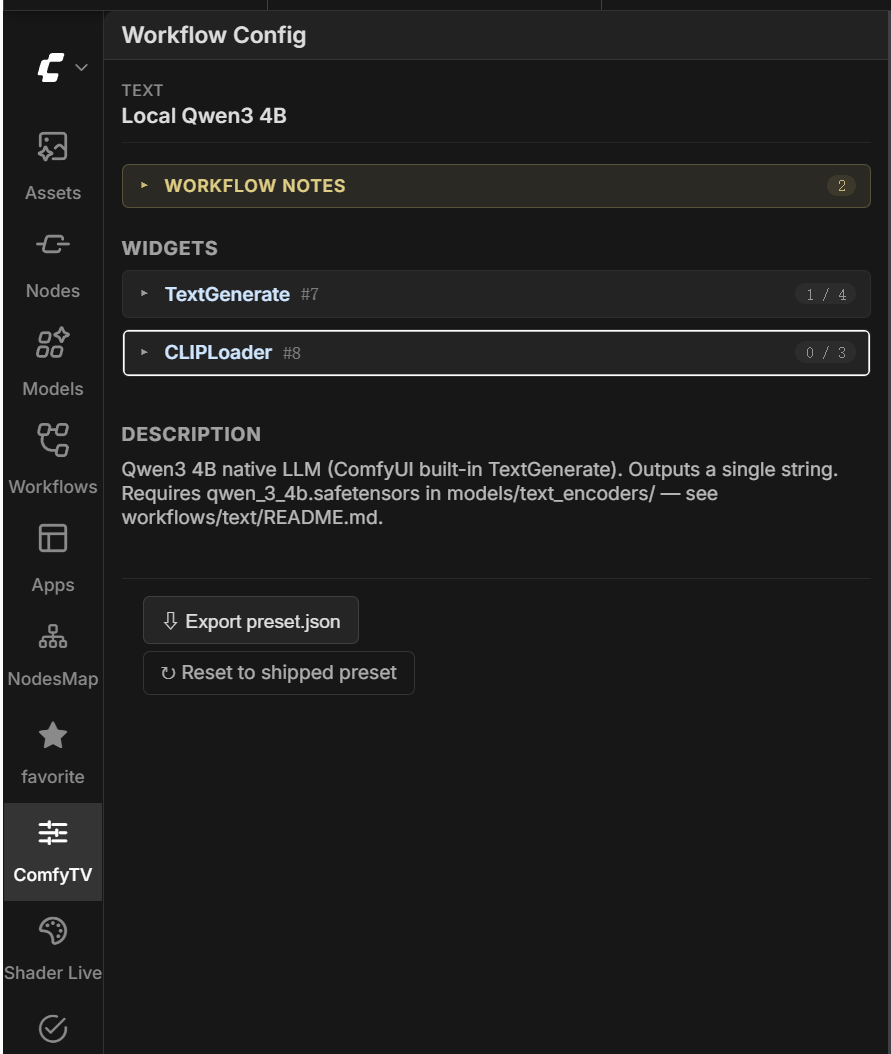
- The stage’s kind and the workflow it currently has selected. If the node’s workflow combo is empty, or the workflow hasn’t finished its one-time preparation yet (normal for a freshly imported one — it happens automatically the first time it runs), the editor says so instead of showing fields.
- A linked source banner when the workflow is a 🔗 linked one: it lives in ComfyUI’s own library and live-updates when you save it there. You can Unlink from here; if the underlying file was moved or deleted, the banner turns into a broken-link warning.
- Notes — free-text notes shipped with the workflow’s preset (gotchas, model requirements).
- Exposed widgets & bindings — the workflow’s nodes, searchable and filterable by group chips, where you edit each binding. Changes apply immediately, no restart.
- ⇩ Export preset.json — package the current bindings to share alongside the workflow file.
Assets — the media library
- Get things in: the upload button, or just drag files onto the panel. The panel also scans ComfyTV’s media folder on open (and via Scan folder in the ⚙ menu) and adopts anything new it finds there. Video assets show a first-frame thumbnail, and the grid virtualizes — libraries stay smooth well into the thousands of entries.
- Organize: create categories and tag assets with them — an asset can carry several tags. Filter by category chip, by media type (image / video / audio / model, with counts), or search by name. Grid and list views.
- Use an asset: drag it onto the canvas — ComfyTV creates the matching Load … from Asset node wired to it — or use the card menu’s Load as node. The menu also offers View full (lightbox), Make proxy (for videos), Edit tags, Rename, and Delete. Deleting removes the library entry; files on disk are left alone.
- Asset images can also be dropped straight into a stage’s prompt as reference images — see Prompt references below.
Eagle — the archive next door
When the Eagle integration is enabled, this tab browses your local Eagle library: search (full-text on Eagle 4’s V2 API), folder and media filters, hover video preview, audio auditioning. Drag any item onto the canvas and it is imported as a regular asset with a loader node at the drop point. The tab header shows the connection state (online / read-only / offline) and a pending-send banner when items are queued. Full walkthrough: eagle.md.Entries — reusable prompt fragments
@label.
- Each entry has a label (must start with a letter or underscore — Chinese is fine — then letters / digits /
_/-) and a content block. At run time,@labelin a prompt expands to the content; unknown tokens stay literal. - Delete an entry and existing
@labeltokens simply fall back to literal text. - Import / Export round-trips all entries of the project as a JSON backup (duplicates are skipped on import).
- You can also create a fragment without leaving the prompt: type
@, type a new label, and the mention popup offers to create it on the spot.
Stages — workflows & extra parameters per stage kind
- Badges tell you each row’s story: built-in (ships with ComfyTV), linked (points into ComfyUI’s native library), new (found in the most recent scan), default, plus health warnings — file missing, not GUI format, API not generated (normal until first run).
- Hover a row to ★ set it as the default — new stage nodes of this kind start with it selected.
- Import a JSON here, or drop files into
user/comfytv/workflows/<kind>/and hit Rescan — the library is re-scanned from disk with no backend restart.
- A parameter has a label, a type (float / int / string / boolean / combo), a default, and type-specific config (min / max / step for numbers, options for combos, placeholder for strings).
- On any stage card of that kind you can then attach the parameter and set a per-node value; the value merges into the stage’s run options, and you wire it into the workflow via a binding in the Workflow tab.
Presets — every saved stage preset
Resources — LUTs, fonts, SoundFonts
Upload, rename, and delete per group. When a stage runs on a remote server, preflight checks that the remote has the same resource — you get a warning (with Run anyway) if it’s missing or differs.
Servers — run stages on other machines
- Test connection shows online/offline plus queue status (running / pending, and how many jobs are from ComfyTV).
- A capability probe reports the remote’s ComfyTV version — or warns that ComfyTV isn’t installed there — and lists any nodes it’s missing. Preflight blocks a run that can’t work (no ComfyTV, missing node) and warns on missing resources.
- Disable or delete a server anytime; stages pointed at it fall back to running locally.
Settings — backups, V2, MCP, Bot and Skills
Global switches, saved to the ComfyTV database:- Backup: automatic snapshots of ComfyTV’s data on server start (toggle, retention count, custom path) plus a Back up now button. This section also hosts Enable ComfyTV V2 nodes (experimental) — the new content-first V2 node shells with light/dark skins; it requires ComfyUI’s own Node 2.0 (Vue nodes) setting and a page refresh after toggling.
- Agent & MCP: Enable MCP server opens the agent endpoint documented in Agent access (MCP); Enable ComfyTV Bot shows the embedded chat agent from ComfyTV Bot. Both default to off; the Bot switch requires MCP and unlocks only when it’s on. Turning MCP off also turns the Bot off, and the ✨ icon appears or disappears immediately when you save. With the Bot on, a model field per provider appears here too — leave it blank for each CLI’s default or pick one of the discovered suggestions.
- Skills: manage the Agent Skills served to agents — a global Enable Agent Skills switch, a per-skill enable toggle, import of a skill
.zip, and delete for user-installed skills. Built-in skills can only be disabled, not deleted.
Prompt references
The sidebar’s libraries plug directly into every stage’s prompt box.
@ in a prompt to open the mention popup:
@image_N— reference the stage’s N-th image inline, counting from 1 (“make @image_1’s character wear @image_2’s outfit”). The media strip above the prompt shows every image the stage will send — wired inputs and pinned assets alike — with its position, and chips share the same color, so you can see at a glance which image is which. Drag the strip to reorder; the tokens in the prompt renumber themselves, and a token whose image was removed is dropped.@fragment— insert an Entries fragment by label. Type a label that doesn’t exist yet and the popup offers to create it inline.- Asset images — insert an image straight from the asset library; it’s sent as a reference image at run and claims one of the workflow’s reference slots.
Pinned image references