
Panorama
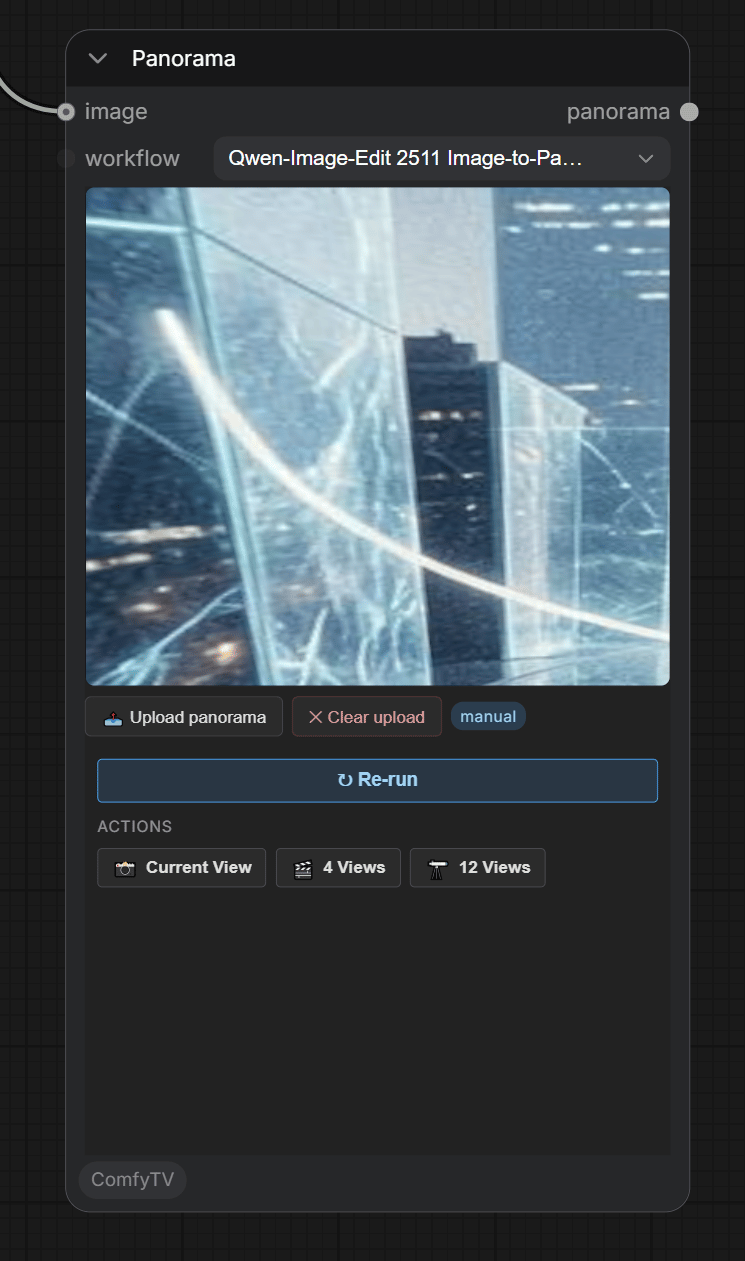
An interactive 360° viewer. You sit inside the sphere and drag to look around.Three ways to get a panorama in
- Upload — click 📤 Upload panorama and choose a file. Supports equirectangular .jpg / .png / .webp and HDR .hdr / .exr. The viewer loads it immediately and a manual badge appears. Upload wins over everything else — clear it before using the Run path.
- Image-to-panorama — workflow
Qwen-Image-Edit 2511 Image-to-Panorama. Wire a regular photo into the input; the prompt can add scene-extension guidance (“extend with grasslands and distant mountains”). The source becomes the central front view and Qwen-Edit extrapolates the full 360°. - Text-to-panorama — workflow
Qwen-Image 2512 + 360 LoRA. No reference image needed; describe the scene in the prompt box and the model generates a full 360° equirectangular from prompt alone. Useful for building environments from scratch.
input folder. ✕ Clear upload drops the manual source.
The Panorama node shows only the 3D viewer, no flat output thumbnail; drag to inspect it in 3D.
Panorama · Current View
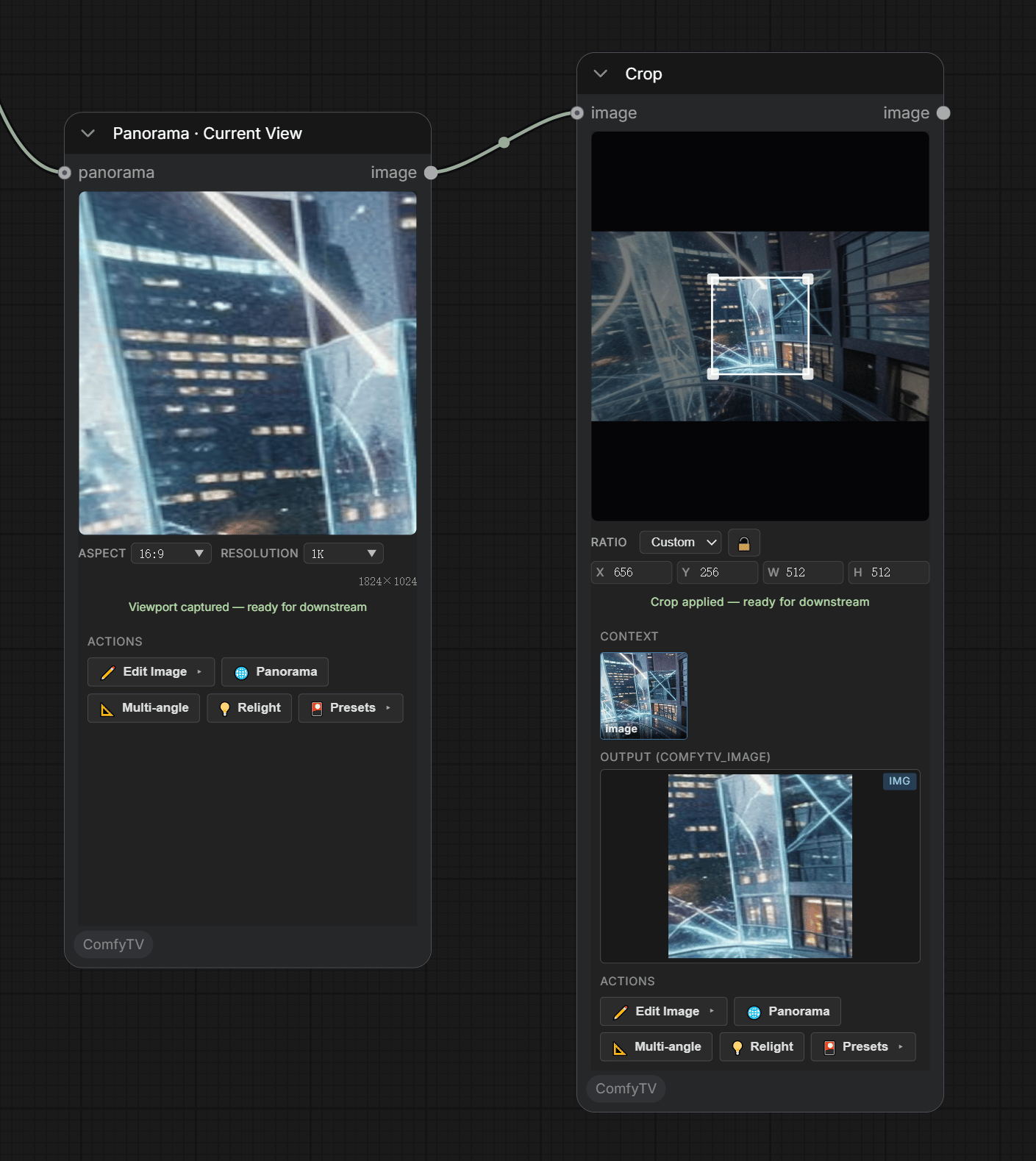
- Aspect + Resolution dropdowns set the captured image’s shape and size. The preview shell is locked to the chosen aspect ratio — what you frame is what you get.
- The captured image flows downstream like any other image (wire it into an editor or video stage).
Panorama · Multi-View
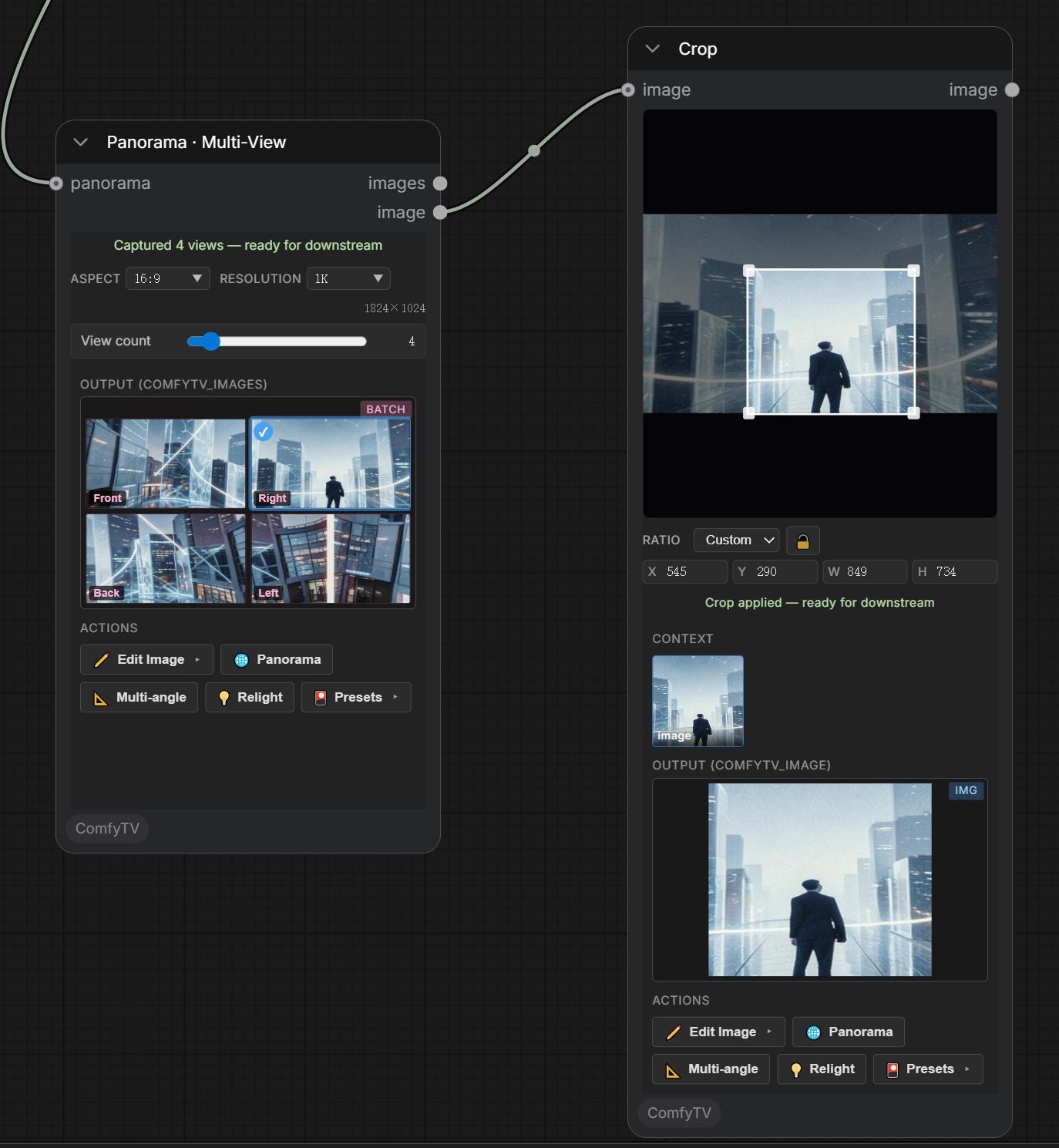
- View count slider (2–24) — how many directions to capture.
- Aspect / Resolution — per-view shape and size.
- Output is a set of images; wire an Image Picker.
View count = 4 the views are labelled Front / Right / Back / Left.