
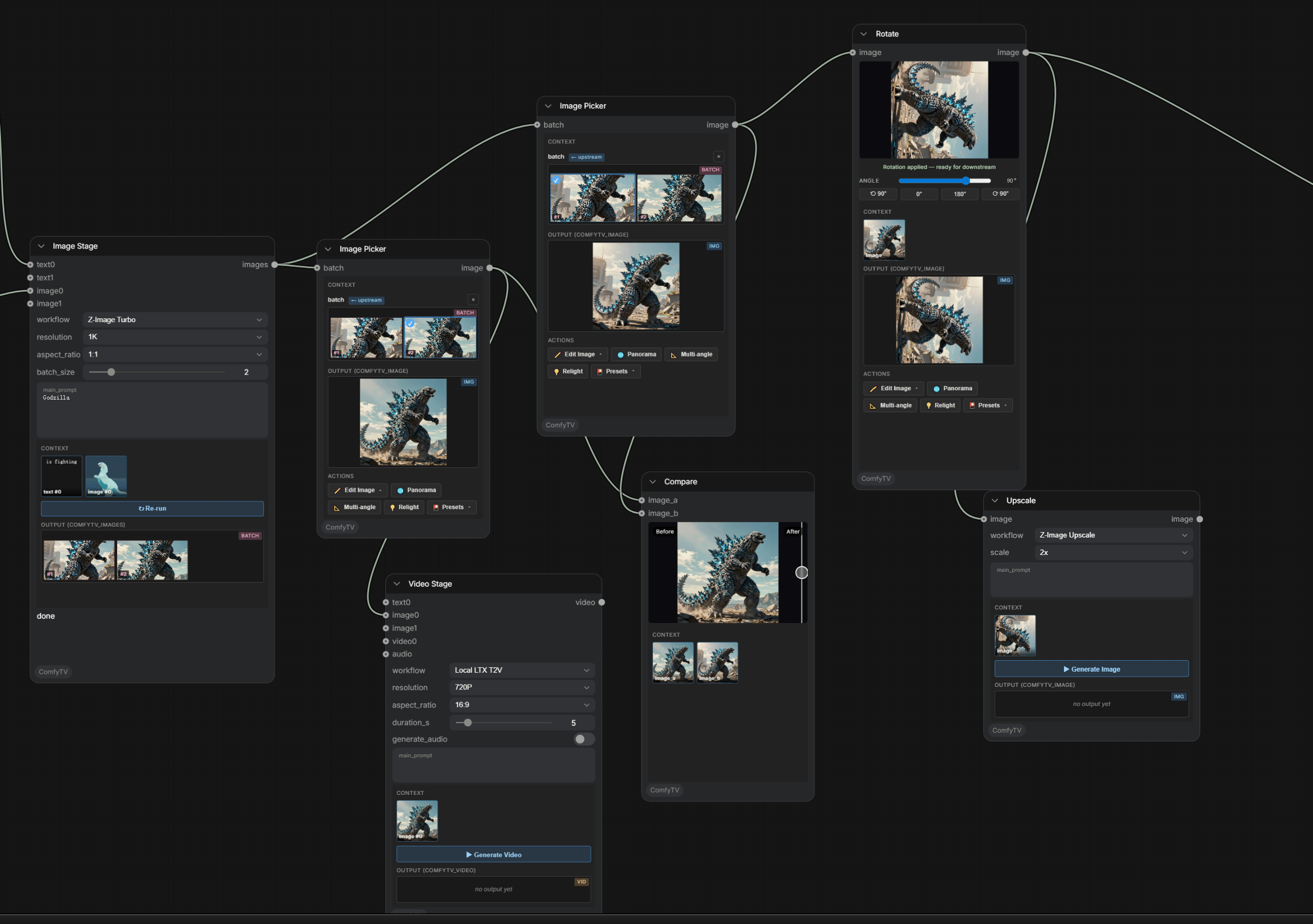
Install
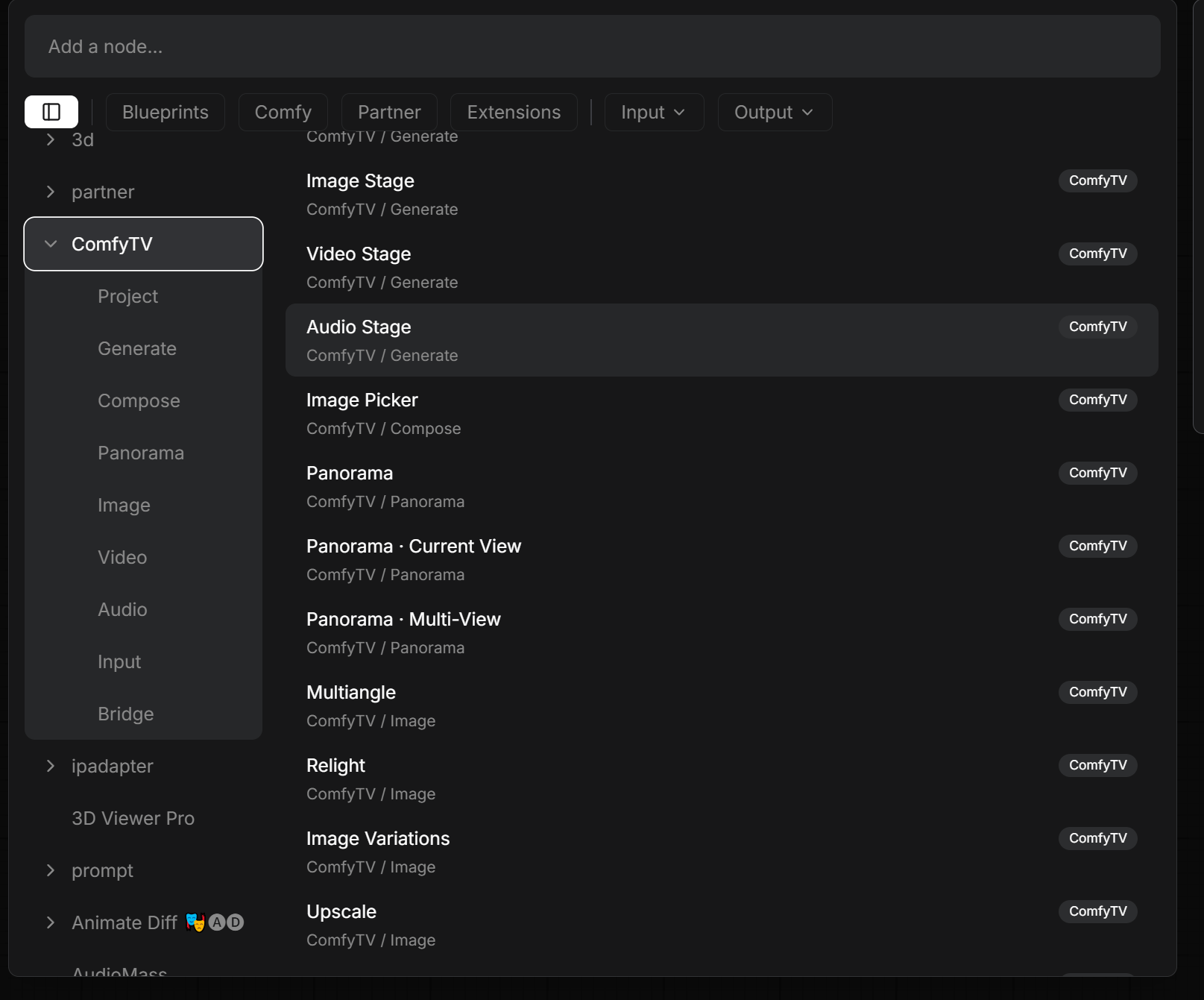
ComfyTV category. It’s split into sub-menus: Project, Input, Generate, Image, Panorama, Video, VideoFX, Keying, Compose, Timeline, Audio, AudioFX, Music, 3D, Material, Storyboard, Bridge.
The basics
Each node has its own Run button
Most stages have a ▶ Run button inside their panel. Clicking it runs just that stage — it does not re-run the whole graph. The result appears in the node’s output preview.Many stages have no Run button at all — crop, rotate, mirror, grid split, panorama viewports, the layer editor, piano rolls, and most FX previews work entirely in your browser and update instantly as you adjust them. A Run (or a final render like FX Chain) is only needed when a file has to be produced.
Results flow downstream as snapshots
Once an upstream stage runs, its result is saved as a snapshot; downstream stages use that snapshot directly when they run, without re-running the upstream.Project selector
Drop a Project node to name/switch the current project. Everything you generate is filed under it — with full output history — and restored when you reload the workflow.The sidebar
The ComfyTV sidebar on the left has eight tabs: Workflow (config editor for the selected stage), Assets (media library), Entries (reusable prompt fragments, referenced with@label), Stages (workflows + custom parameters per stage kind, ★ default), Presets, Resources (LUTs / fonts / SoundFonts), Servers (run stages on other machines), and Settings (backups, the experimental V2 node skins, and the agent switches — MCP, Bot, Skills). Full tour: sidebar.md.
Quick run
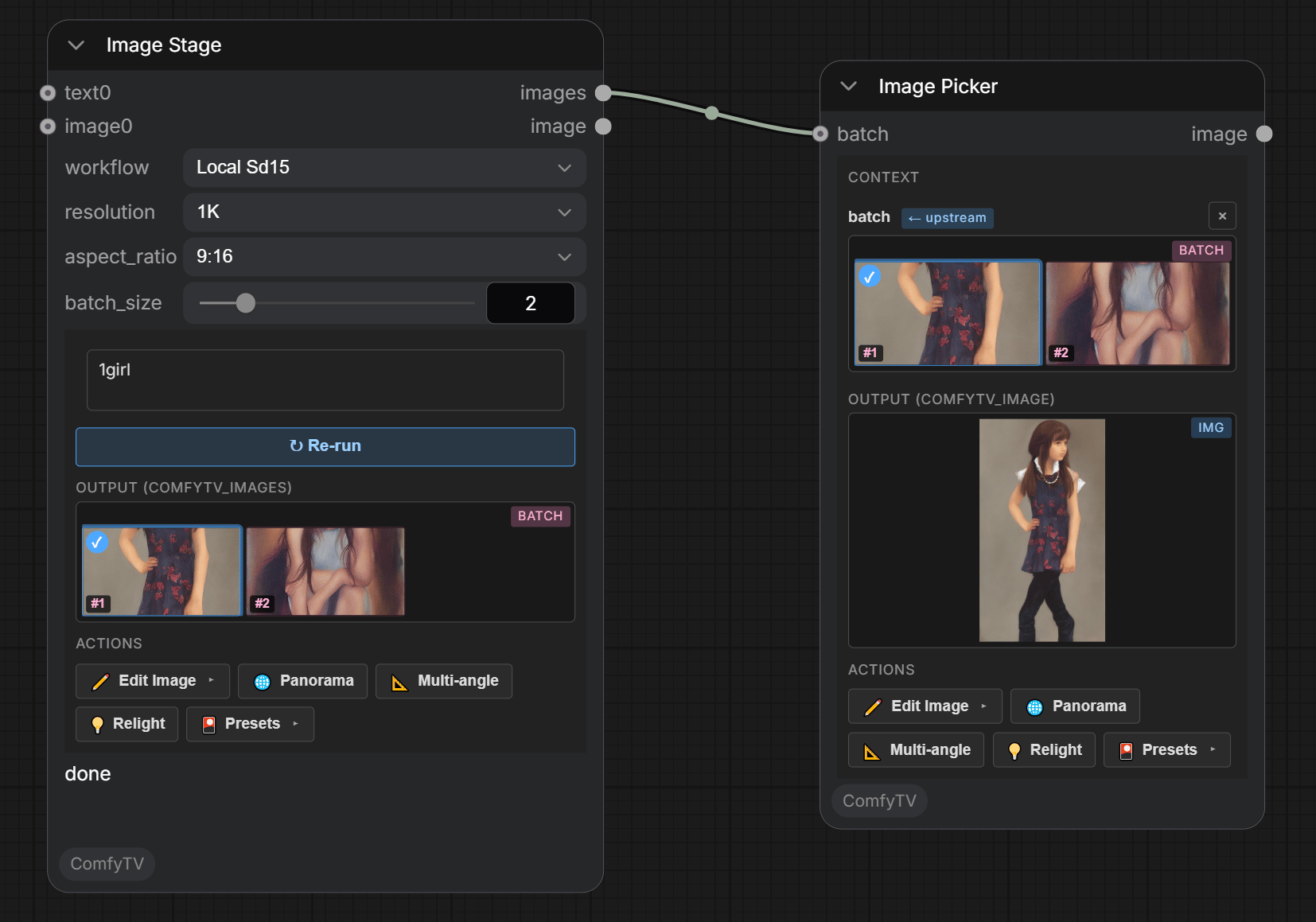
- Add Generate → Image Stage.
- Type a prompt in the node’s text box (e.g.
a red apple on a wooden table). - Pick a model in the workflow dropdown — start with
Local SD1.5. - Click ▶ Run.
Pick a result
Click a thumbnail on the Image Stage itself, or on the auto-spawned Image Picker. Either way an action toolbar (✏️ Edit, 🌐 Panorama, 📐 Multiangle, …) appears next to the picked frame.
Zoom into a preview
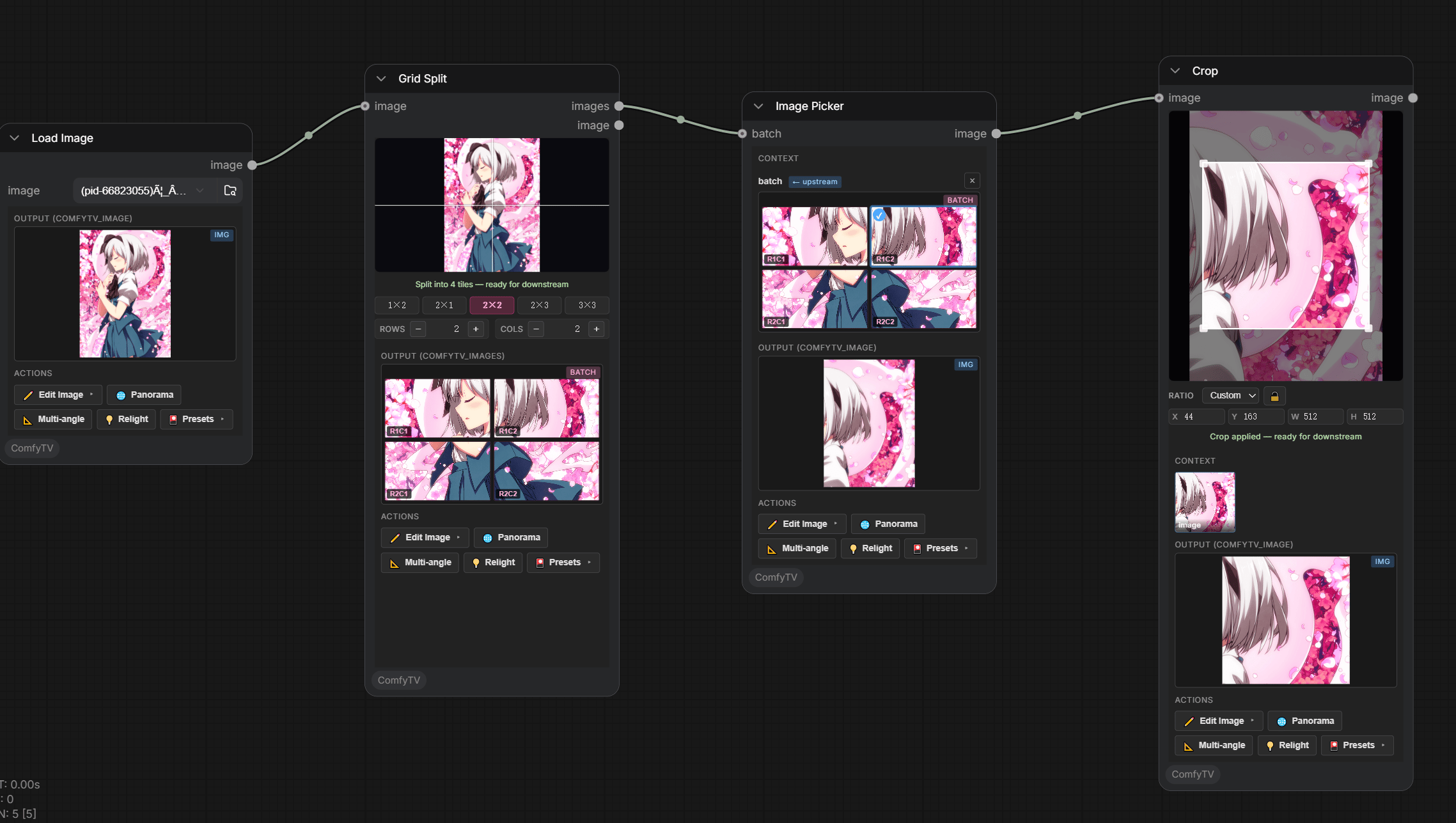
Hover any output image and use the mouse wheel to zoom (1×–6×), drag to pan, and double-click to reset. Works on every image output preview.Where to next
- sidebar.md — the 7-tab sidebar and
@prompt references - generate.md — generators (text / image / video / music / speech / 3D model)
- image-tools.md — crop, rotate, mirror, inpaint, erase, cutout, upscale, outpaint, grid split, variations, multi-angle, relight
- video-and-audio.md — the video & audio suites (~100 video nodes, 30+ audio nodes)
- making-music.md — scores, piano rolls, SoundFont synthesis
- compose.md — pickers, A/B compare, storyboard, timeline
- custom-workflows.md — 🔗 Link workflow (recommended), upload, and the library folder