> ## Documentation Index
> Fetch the complete documentation index at: https://comfytv.org/llms.txt
> Use this file to discover all available pages before exploring further.
# MIDI Editor
> A seconds-domain MIDI piano roll. Draw and edit notes across channels with per-channel instruments, mute/solo and velocity, then export a Standard MIDI File.
 ## What this node does
**MIDI Editor** is an in-browser piano roll that works in the **time domain
(seconds)** rather than beats — the horizontal grid is real time, so it's built
for editing actual MIDI performances. You draw notes on the grid, organize them
into MIDI **channels** (each with a General MIDI instrument, plus a dedicated
drum channel), mute/solo channels while you work, and shape velocity.
Press **▶ Run** to write a Standard MIDI File on the backend; the `midi`
output is a `COMFYTV_AUDIO` payload pointing at the exported `.mid`. Running
with an empty roll fails with "the piano roll is empty".
You can import a wired MIDI file (`midi` input, `COMFYTV_AUDIO`) into the roll —
its channels, programs and tempo map come in, ready to edit.
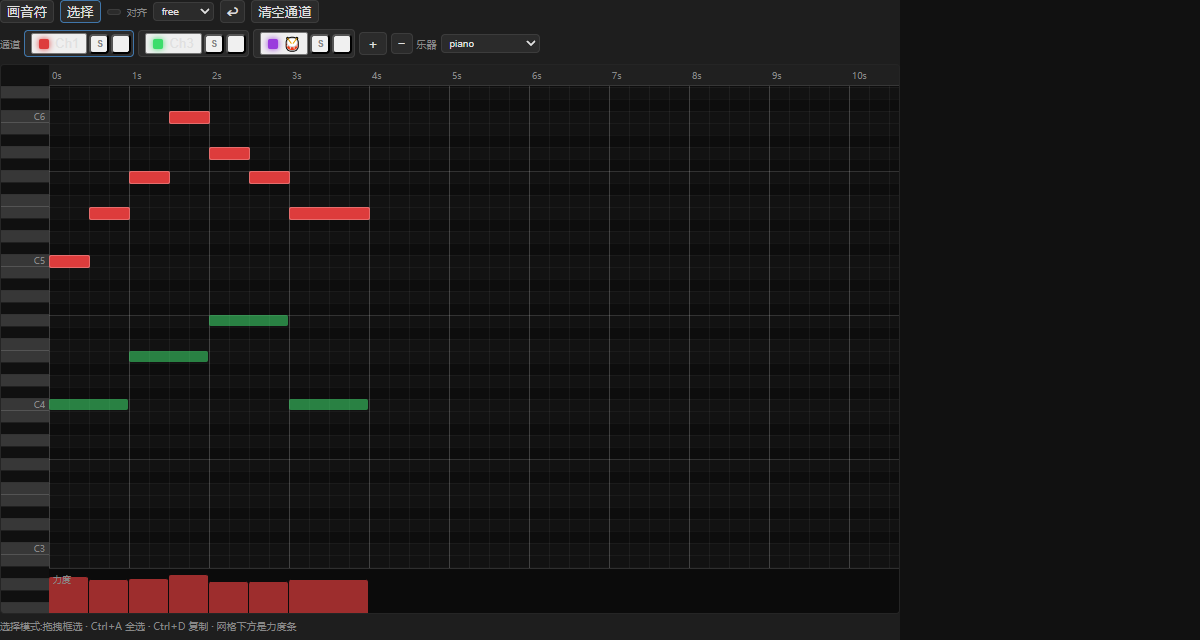
## The editor
The card is a toolbar-plus-piano-roll, laid out in the time domain.
**Tool row.**
* **Draw / Select** — the two editing modes.
* *Draw*: click-drag on the grid to create a note; the drag sets its duration
and it beeps as you place it.
* *Select*: drag a marquee to select (Shift adds); click a note to grab it.
* **Play (▶ / ■)** — plays the roll with a built-in oscillator/drum synth using
look-ahead scheduling; a green playhead sweeps in real time and muted channels
stay silent.
* **Snap** — time snapping: **free, 10ms, 50ms, 100ms, 250ms,** or **1s**.
* **Undo (↩)**, **Clear channel**, and (when a MIDI file is wired) **Import
MIDI**. Import errors show here.
**Channel row.** Each MIDI **channel** is a chip showing a color swatch and its
number (`Ch1`…), or 🥁 for the drum channel (channel 10 / index 9). Per chip:
* click the chip to make that channel **active**,
* **S** solos the channel (mutes all others),
* the **volume icon** mutes/unmutes it,
* hovering a chip highlights just that channel in the roll (others dim).
**+** adds a channel, **+🥁** adds the drum channel (only if there isn't one),
**−** removes the active channel. For non-drum channels, an **Instrument**
dropdown sets the General MIDI program.
**Piano roll.** A scrollable grid with a piano keyboard down the left (click a
key to audition; C notes labelled; drum channels show GM drum names). A time
ruler across the top marks seconds (tick spacing adapts to zoom). Notes are
color-coded by channel/instrument and can be:
* **moved** by dragging the body,
* **resized** from the left or right edge handle,
* **deleted** by double-clicking,
* multi-selected and edited together.
Notes on inactive channels appear as dim "ghost" blocks in their channel color.
A **velocity lane** along the bottom paints 0–127 velocity for the notes under
the cursor.
**Zoom & navigation.** Ctrl/Cmd + mouse wheel zooms the time axis; scroll bars
pan. Shortcuts: **Delete/Backspace** removes selected notes, **Ctrl/Cmd+Z**
undoes, **Ctrl/Cmd+A** selects all.
## Workflow / step by step
1. (Optional) wire a MIDI file and press **Import MIDI** to load its channels,
programs and tempo map.
2. Pick a **Snap** value; select a **channel** and set its **Instrument** (or
add 🥁 for drums).
3. **Draw** or edit notes; drag the edge handles to trim durations.
4. Use **S/mute** on channels to isolate parts while you work; shape dynamics in
the **velocity lane**.
5. Press **Play** to audition; use ghost notes to align across channels.
6. Press **▶ Run** to export the **midi** file, then feed it to **Score Synth**
(to render audio) or download it.
## Inputs and outputs
| Slot | Dir | Type | Meaning |
| -------- | ------------- | --------------- | ---------------------------------------- |
| **midi** | in (optional) | `COMFYTV_AUDIO` | A MIDI file to import into the roll |
| **midi** | out | `COMFYTV_AUDIO` | The exported Standard MIDI File (`.mid`) |
The roll (events, channel programs and tempo map) is stored on the node in a
hidden `events_json` field, so it's saved with the workflow. Mute/solo state is
a live playback aid and is not part of the export.
## Tips
* This is the **seconds-domain** editor — positions are real time, not beats.
For beat/bar composing that becomes MusicXML, use **Score Editor** instead.
* **Solo (S)** is the fast way to hear one channel; it mutes everything else
until you toggle it off. Mute/solo only affects the in-editor preview, not the
exported file.
* Importing a MIDI file brings in its tempo map and per-channel programs — a
good starting point for cleanup.
* The exported `.mid` is `COMFYTV_AUDIO`; feed it to **Score Synth** to hear it
with a SoundFont.
## Related nodes
* **Score Editor** — the beats-domain piano roll that outputs MusicXML.
* **Score Performer** — outputs a MIDI file from a written score.
* **Score Synth** — renders the exported MIDI to audio via a SoundFont.
* **Bridge** — convert `COMFYTV_AUDIO` to/from native ComfyUI. See
[https://github.com/jtydhr88/ComfyTV/blob/main/docs/bridges.md](https://github.com/jtydhr88/ComfyTV/blob/main/docs/bridges.md)
## What this node does
**MIDI Editor** is an in-browser piano roll that works in the **time domain
(seconds)** rather than beats — the horizontal grid is real time, so it's built
for editing actual MIDI performances. You draw notes on the grid, organize them
into MIDI **channels** (each with a General MIDI instrument, plus a dedicated
drum channel), mute/solo channels while you work, and shape velocity.
Press **▶ Run** to write a Standard MIDI File on the backend; the `midi`
output is a `COMFYTV_AUDIO` payload pointing at the exported `.mid`. Running
with an empty roll fails with "the piano roll is empty".
You can import a wired MIDI file (`midi` input, `COMFYTV_AUDIO`) into the roll —
its channels, programs and tempo map come in, ready to edit.
## The editor
The card is a toolbar-plus-piano-roll, laid out in the time domain.
**Tool row.**
* **Draw / Select** — the two editing modes.
* *Draw*: click-drag on the grid to create a note; the drag sets its duration
and it beeps as you place it.
* *Select*: drag a marquee to select (Shift adds); click a note to grab it.
* **Play (▶ / ■)** — plays the roll with a built-in oscillator/drum synth using
look-ahead scheduling; a green playhead sweeps in real time and muted channels
stay silent.
* **Snap** — time snapping: **free, 10ms, 50ms, 100ms, 250ms,** or **1s**.
* **Undo (↩)**, **Clear channel**, and (when a MIDI file is wired) **Import
MIDI**. Import errors show here.
**Channel row.** Each MIDI **channel** is a chip showing a color swatch and its
number (`Ch1`…), or 🥁 for the drum channel (channel 10 / index 9). Per chip:
* click the chip to make that channel **active**,
* **S** solos the channel (mutes all others),
* the **volume icon** mutes/unmutes it,
* hovering a chip highlights just that channel in the roll (others dim).
**+** adds a channel, **+🥁** adds the drum channel (only if there isn't one),
**−** removes the active channel. For non-drum channels, an **Instrument**
dropdown sets the General MIDI program.
**Piano roll.** A scrollable grid with a piano keyboard down the left (click a
key to audition; C notes labelled; drum channels show GM drum names). A time
ruler across the top marks seconds (tick spacing adapts to zoom). Notes are
color-coded by channel/instrument and can be:
* **moved** by dragging the body,
* **resized** from the left or right edge handle,
* **deleted** by double-clicking,
* multi-selected and edited together.
Notes on inactive channels appear as dim "ghost" blocks in their channel color.
A **velocity lane** along the bottom paints 0–127 velocity for the notes under
the cursor.
**Zoom & navigation.** Ctrl/Cmd + mouse wheel zooms the time axis; scroll bars
pan. Shortcuts: **Delete/Backspace** removes selected notes, **Ctrl/Cmd+Z**
undoes, **Ctrl/Cmd+A** selects all.
## Workflow / step by step
1. (Optional) wire a MIDI file and press **Import MIDI** to load its channels,
programs and tempo map.
2. Pick a **Snap** value; select a **channel** and set its **Instrument** (or
add 🥁 for drums).
3. **Draw** or edit notes; drag the edge handles to trim durations.
4. Use **S/mute** on channels to isolate parts while you work; shape dynamics in
the **velocity lane**.
5. Press **Play** to audition; use ghost notes to align across channels.
6. Press **▶ Run** to export the **midi** file, then feed it to **Score Synth**
(to render audio) or download it.
## Inputs and outputs
| Slot | Dir | Type | Meaning |
| -------- | ------------- | --------------- | ---------------------------------------- |
| **midi** | in (optional) | `COMFYTV_AUDIO` | A MIDI file to import into the roll |
| **midi** | out | `COMFYTV_AUDIO` | The exported Standard MIDI File (`.mid`) |
The roll (events, channel programs and tempo map) is stored on the node in a
hidden `events_json` field, so it's saved with the workflow. Mute/solo state is
a live playback aid and is not part of the export.
## Tips
* This is the **seconds-domain** editor — positions are real time, not beats.
For beat/bar composing that becomes MusicXML, use **Score Editor** instead.
* **Solo (S)** is the fast way to hear one channel; it mutes everything else
until you toggle it off. Mute/solo only affects the in-editor preview, not the
exported file.
* Importing a MIDI file brings in its tempo map and per-channel programs — a
good starting point for cleanup.
* The exported `.mid` is `COMFYTV_AUDIO`; feed it to **Score Synth** to hear it
with a SoundFont.
## Related nodes
* **Score Editor** — the beats-domain piano roll that outputs MusicXML.
* **Score Performer** — outputs a MIDI file from a written score.
* **Score Synth** — renders the exported MIDI to audio via a SoundFont.
* **Bridge** — convert `COMFYTV_AUDIO` to/from native ComfyUI. See
[https://github.com/jtydhr88/ComfyTV/blob/main/docs/bridges.md](https://github.com/jtydhr88/ComfyTV/blob/main/docs/bridges.md)