> ## Documentation Index
> Fetch the complete documentation index at: https://comfytv.org/llms.txt
> Use this file to discover all available pages before exploring further.
# Image tools
Once you have an image (from a **Generate → Image** batch, picked in an **Image Picker**, or a **Load Image** node), the picker's **`✏️ Edit`** toolbar and the **ComfyTV / Image** menu give you a set of operations.
* **Instant (browser-side)** — Crop, Rotate, Mirror, Grid Split. Parameter changes update live, output is immediately usable downstream.
* **Generative** — Image Edit, Inpaint, Erase, Outpaint, Upscale, Multiangle, Relight, Cutout, plus Image Variations (multi-view / story-grid presets).
> To act on a single image, work from an **Image Picker** — it carries the full edit toolbar.
***
## Crop *(instant)*
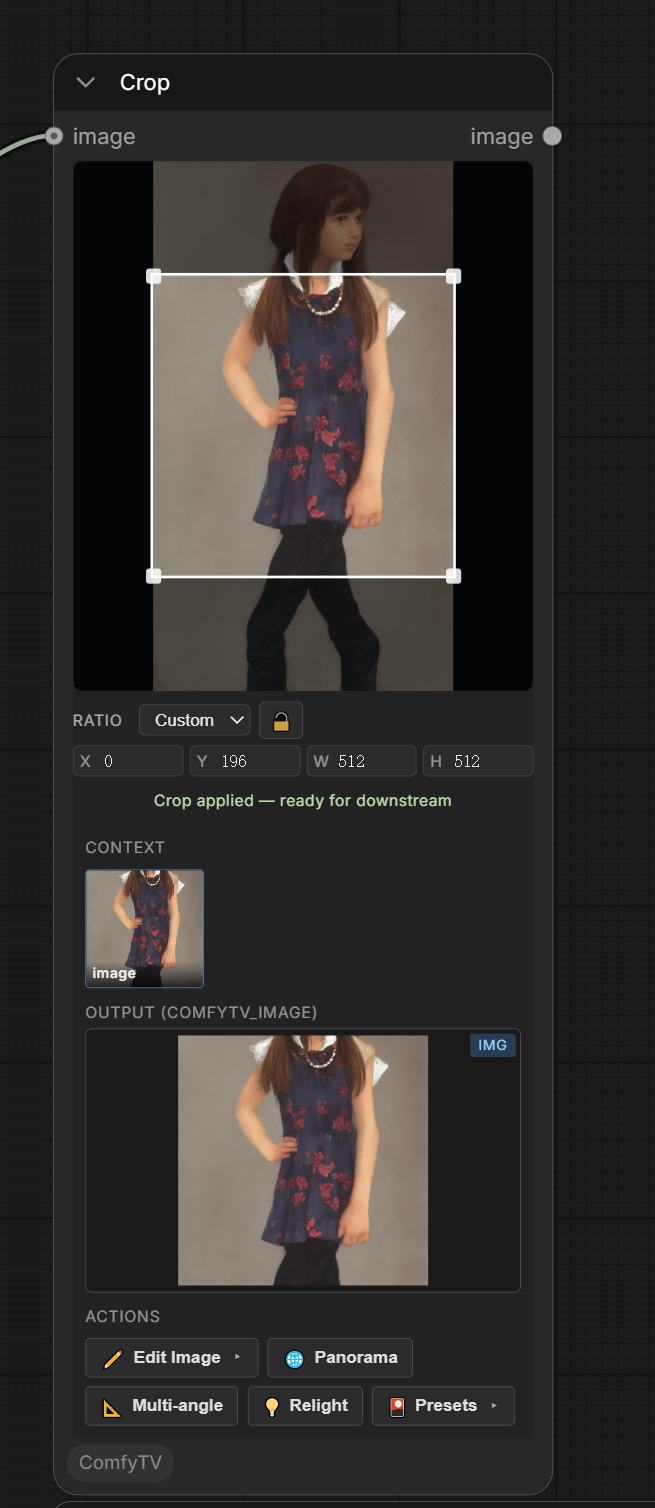 A draggable crop rectangle over the source image.
* Drag the **box** to move it; drag the **edges/corners** to resize.
* **Ratio** dropdown locks an aspect ratio (1:1, 16:9, …); the 🔒 button toggles the lock.
* **X / Y / W / H** boxes let you type exact pixel bounds.
* The cropped image is produced automatically.
## Rotate *(instant)*
Slider for any angle (−180°…180°) plus quick buttons (⟲ 90° / 0° / 180° / ⟳ 90°). The preview rotates live.
## Mirror *(instant)*
Two toggles: **⇋ horizontal** flip and **⇅ vertical** flip.
## Grid Split *(instant)*
A draggable crop rectangle over the source image.
* Drag the **box** to move it; drag the **edges/corners** to resize.
* **Ratio** dropdown locks an aspect ratio (1:1, 16:9, …); the 🔒 button toggles the lock.
* **X / Y / W / H** boxes let you type exact pixel bounds.
* The cropped image is produced automatically.
## Rotate *(instant)*
Slider for any angle (−180°…180°) plus quick buttons (⟲ 90° / 0° / 180° / ⟳ 90°). The preview rotates live.
## Mirror *(instant)*
Two toggles: **⇋ horizontal** flip and **⇅ vertical** flip.
## Grid Split *(instant)*
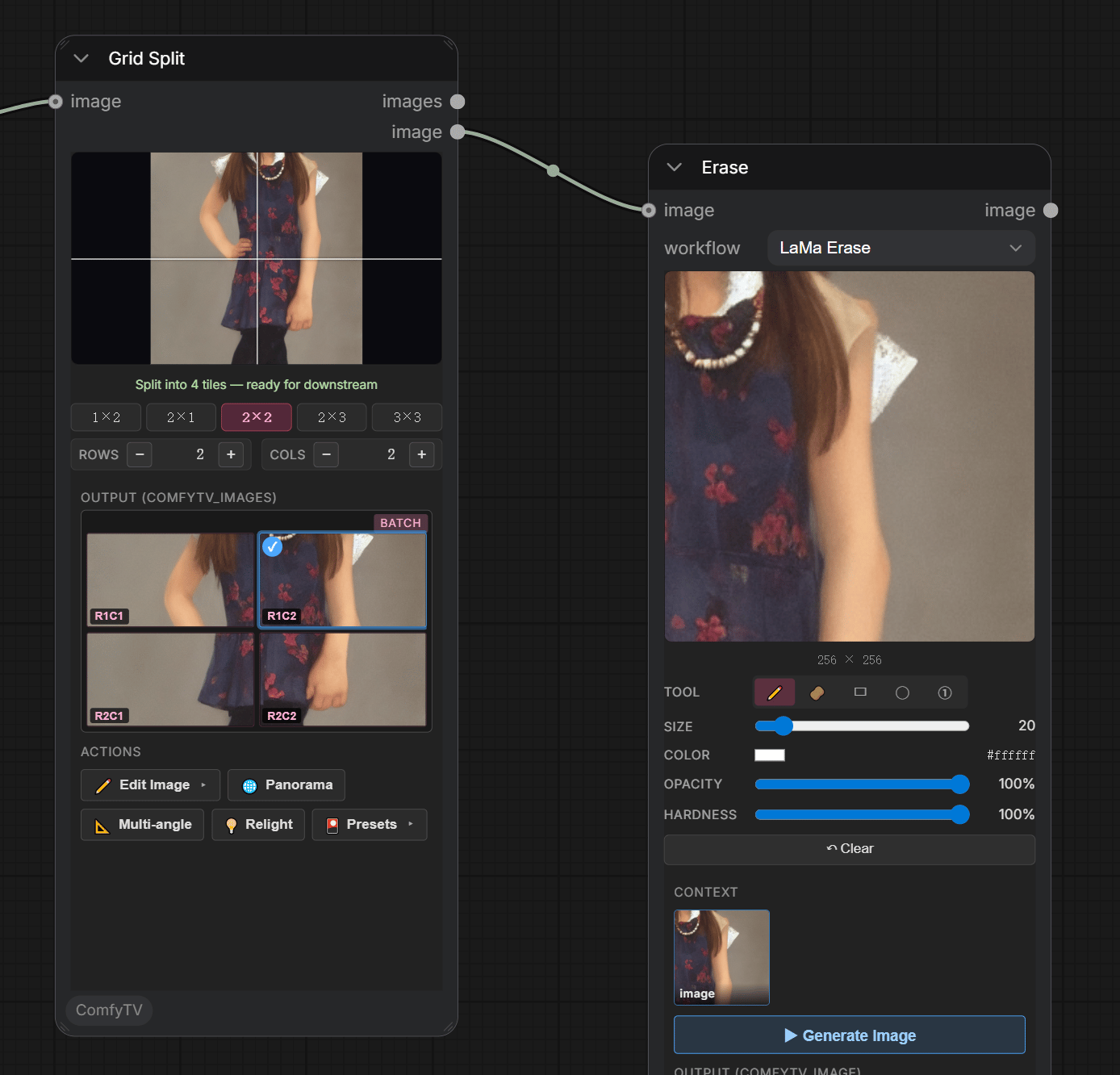 Slice one image into a grid → an image **set**.
* Pick a preset (1×2 / 2×1 / 2×2 / 2×3 / 3×3) or use the **Rows / Cols** steppers.
* Grid lines preview where the cuts land.
* Wire the output into an **Image Picker**.
***
## Image Edit
Generic prompt-driven image editing — change, replace, restyle, anything you can describe in words. The shipped `Flux Canny Edit` workflow takes an input image + a text instruction.
## Inpaint / Erase
Slice one image into a grid → an image **set**.
* Pick a preset (1×2 / 2×1 / 2×2 / 2×3 / 3×3) or use the **Rows / Cols** steppers.
* Grid lines preview where the cuts land.
* Wire the output into an **Image Picker**.
***
## Image Edit
Generic prompt-driven image editing — change, replace, restyle, anything you can describe in words. The shipped `Flux Canny Edit` workflow takes an input image + a text instruction.
## Inpaint / Erase
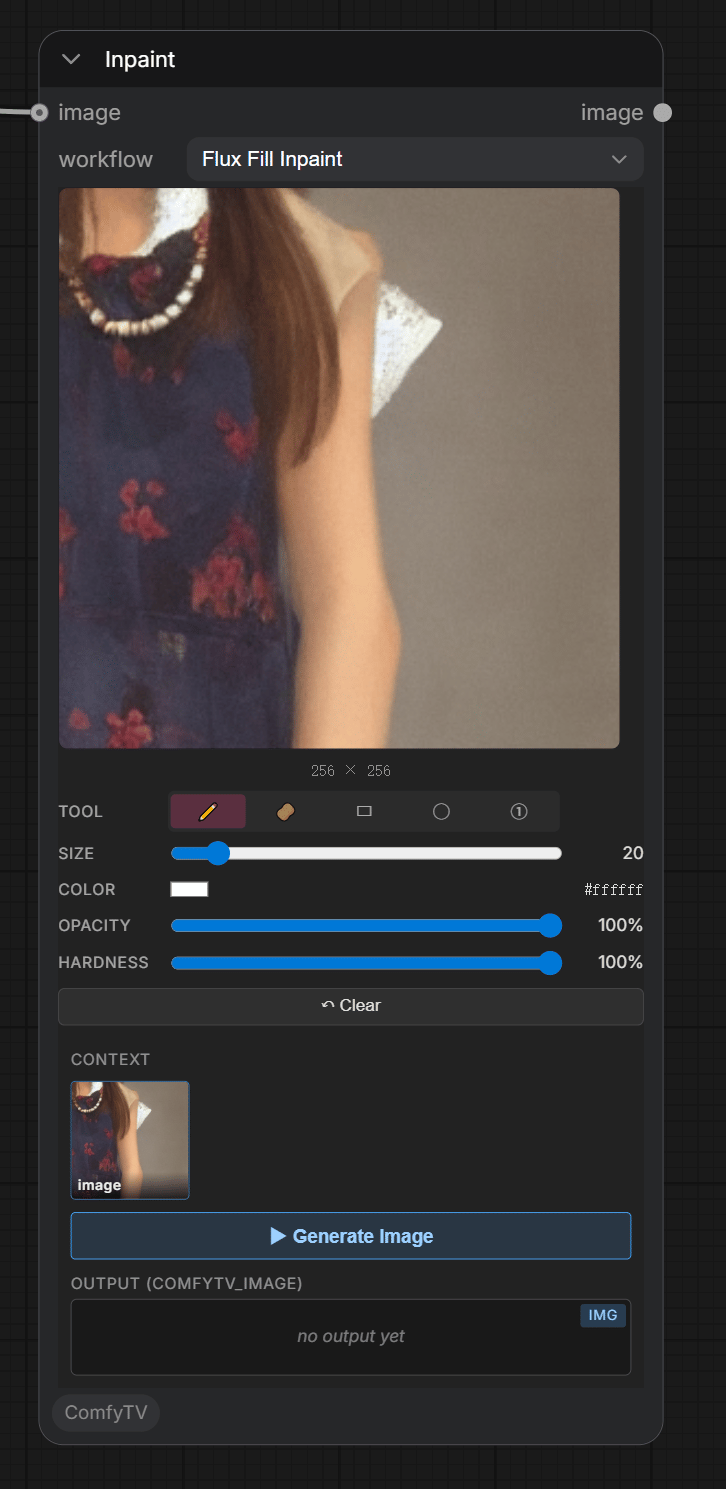 A mask painter overlaid on the source image. Tools:
* **✏️ Brush** — paint the mask region (size / opacity / hardness sliders).
* **🧽 Eraser** — remove painted mask.
* **▭ Rectangle / ◯ Ellipse** — drag to draw an outline shape (annotation).
* **① Label** — click to stamp an auto-numbered marker.
* **Color** applies to brush + shapes + labels; **Clear** wipes the canvas.
**Inpaint** regenerates the masked region from your prompt — ships with `Flux Fill Inpaint` and `Fooocus SDXL Inpaint`. **Erase** removes the masked region and fills from surrounding context, no prompt — ships with `LaMa Erase` (requires installing [`comfyui-inpaint-nodes`](https://github.com/Acly/comfyui-inpaint-nodes) + `big-lama.pt`).
## Outpaint
Extend the canvas outward — pick the side(s) and pixels to extend, describe the whole finished image in the prompt. Ships with `Flux Fill Outpaint` and `Fooocus SDXL Outpaint`.
## Upscale
Increase resolution. Ships with `Ultrasharp 4x` (4x-UltraSharp GAN).
## Multiangle
A mask painter overlaid on the source image. Tools:
* **✏️ Brush** — paint the mask region (size / opacity / hardness sliders).
* **🧽 Eraser** — remove painted mask.
* **▭ Rectangle / ◯ Ellipse** — drag to draw an outline shape (annotation).
* **① Label** — click to stamp an auto-numbered marker.
* **Color** applies to brush + shapes + labels; **Clear** wipes the canvas.
**Inpaint** regenerates the masked region from your prompt — ships with `Flux Fill Inpaint` and `Fooocus SDXL Inpaint`. **Erase** removes the masked region and fills from surrounding context, no prompt — ships with `LaMa Erase` (requires installing [`comfyui-inpaint-nodes`](https://github.com/Acly/comfyui-inpaint-nodes) + `big-lama.pt`).
## Outpaint
Extend the canvas outward — pick the side(s) and pixels to extend, describe the whole finished image in the prompt. Ships with `Flux Fill Outpaint` and `Fooocus SDXL Outpaint`.
## Upscale
Increase resolution. Ships with `Ultrasharp 4x` (4x-UltraSharp GAN).
## Multiangle
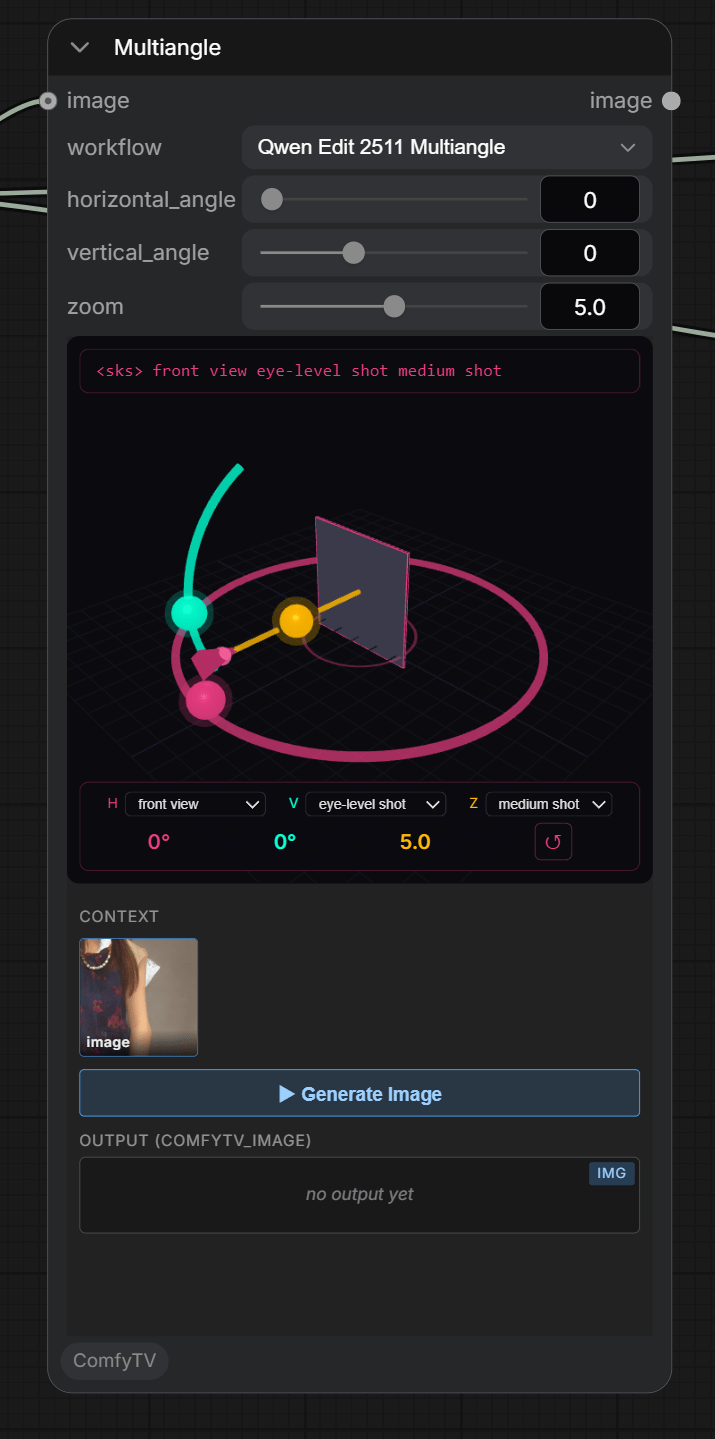 A 3D camera widget: drag the handles (or the scene) to pick a viewpoint — azimuth, elevation, distance. The chosen angle becomes a view prompt (e.g. *"front-right quarter view, eye-level shot, medium shot"*), then the model re-renders the subject from that viewpoint. Ships with `Qwen Edit 2511 Multiangle` (Qwen Image-Edit + Multiangle LoRA).
## Relight
Clicking the **Relight** action spawns a pair: a pure-frontend **Relight** light-source node (a 3D light-ball editor — place directional / point / spot lights around a clay sphere, or click a lighting preset like three-point / Rembrandt / rim) plus an Image Stage preset to the `Flux2 Klein Relight` workflow (Flux-2 Klein 9B + Sun-direction LoRA). The light-ball scene renders in the browser and feeds the workflow as the lighting reference (`images[1]`); the model transfers that lighting onto the subject (`images[0]`) while preserving identity / geometry. Any image (e.g. via Load Image from Asset) can replace the light-ball render as the reference.
## Cutout
Background removal. Wire an image, click Run, get a PNG with a real alpha channel. Ships with `BiRefNet Cutout` — requires `birefnet.safetensors` in `models/background_removal/` (see [models.md](/guides/models)).
## Image Variations
Driven by the toolbar presets — click a preset and ComfyTV auto-spawns an Image Variations stage with the right workflow pre-selected; click Run to get a set of related images.
| Preset | Workflow | Output | Backend |
| ---------------------------------- | ---------------------------- | ------------------------------------------- | ----------------------------------------------------------------------------- |
| 🎬 **Multi-cam 9-grid** | `Multi-cam 9` | 9-image set | ✅ Qwen Multiple-Angles LoRA, single workflow with 9 parallel sampler branches |
| 👤 **Face 3-view** | `Face 3-View` | 3-image set (front / 3/4 / side) | ✅ same |
| 📦 **Product 3-view** | `Product 3-View` | 3-image set (front / side / back) | ✅ same |
| 🧍 **Character 3-view** | `Character 3-View` | 3-image set (full-body front / side / back) | ✅ same |
| 📖 **Story Progression** (4-panel) | `Story 4` | 4-image set | ✅ Qwen Next-Scene LoRA, single workflow with 4 chained samplers |
| 🎞 **Storyboard** (25-grid) | `Storyboard 25` | 25-image set | ✅ same chain extended to 25 frames |
| 🎥 **Cinematic Lighting** | (routes to Relight Stage) | single image | ✅ |
| ⏱️ **Project +3s / +5s** | (routes to Image Edit Stage) | single image | ✅ |
Notes:
* **Multi-view** (Face / Product / Character / Multi-cam 9) — each output is the same subject from a different angle. Write the prompt as the subject description ("a young Asian businesswoman, 30s"); each branch's angle keyword is prefixed automatically.
* **Sequence** (Story 4 / Storyboard 25) — each frame is generated from the previous one (Next-Scene LoRA). Slower than multi-view.
***
For 360° tools see [panorama.md](/guides/panorama); for picking / comparing see [compose.md](/guides/compose).
A 3D camera widget: drag the handles (or the scene) to pick a viewpoint — azimuth, elevation, distance. The chosen angle becomes a view prompt (e.g. *"front-right quarter view, eye-level shot, medium shot"*), then the model re-renders the subject from that viewpoint. Ships with `Qwen Edit 2511 Multiangle` (Qwen Image-Edit + Multiangle LoRA).
## Relight
Clicking the **Relight** action spawns a pair: a pure-frontend **Relight** light-source node (a 3D light-ball editor — place directional / point / spot lights around a clay sphere, or click a lighting preset like three-point / Rembrandt / rim) plus an Image Stage preset to the `Flux2 Klein Relight` workflow (Flux-2 Klein 9B + Sun-direction LoRA). The light-ball scene renders in the browser and feeds the workflow as the lighting reference (`images[1]`); the model transfers that lighting onto the subject (`images[0]`) while preserving identity / geometry. Any image (e.g. via Load Image from Asset) can replace the light-ball render as the reference.
## Cutout
Background removal. Wire an image, click Run, get a PNG with a real alpha channel. Ships with `BiRefNet Cutout` — requires `birefnet.safetensors` in `models/background_removal/` (see [models.md](/guides/models)).
## Image Variations
Driven by the toolbar presets — click a preset and ComfyTV auto-spawns an Image Variations stage with the right workflow pre-selected; click Run to get a set of related images.
| Preset | Workflow | Output | Backend |
| ---------------------------------- | ---------------------------- | ------------------------------------------- | ----------------------------------------------------------------------------- |
| 🎬 **Multi-cam 9-grid** | `Multi-cam 9` | 9-image set | ✅ Qwen Multiple-Angles LoRA, single workflow with 9 parallel sampler branches |
| 👤 **Face 3-view** | `Face 3-View` | 3-image set (front / 3/4 / side) | ✅ same |
| 📦 **Product 3-view** | `Product 3-View` | 3-image set (front / side / back) | ✅ same |
| 🧍 **Character 3-view** | `Character 3-View` | 3-image set (full-body front / side / back) | ✅ same |
| 📖 **Story Progression** (4-panel) | `Story 4` | 4-image set | ✅ Qwen Next-Scene LoRA, single workflow with 4 chained samplers |
| 🎞 **Storyboard** (25-grid) | `Storyboard 25` | 25-image set | ✅ same chain extended to 25 frames |
| 🎥 **Cinematic Lighting** | (routes to Relight Stage) | single image | ✅ |
| ⏱️ **Project +3s / +5s** | (routes to Image Edit Stage) | single image | ✅ |
Notes:
* **Multi-view** (Face / Product / Character / Multi-cam 9) — each output is the same subject from a different angle. Write the prompt as the subject description ("a young Asian businesswoman, 30s"); each branch's angle keyword is prefixed automatically.
* **Sequence** (Story 4 / Storyboard 25) — each frame is generated from the previous one (Next-Scene LoRA). Slower than multi-view.
***
For 360° tools see [panorama.md](/guides/panorama); for picking / comparing see [compose.md](/guides/compose).