> ## Documentation Index
> Fetch the complete documentation index at: https://comfytv.org/llms.txt
> Use this file to discover all available pages before exploring further.
# Getting started
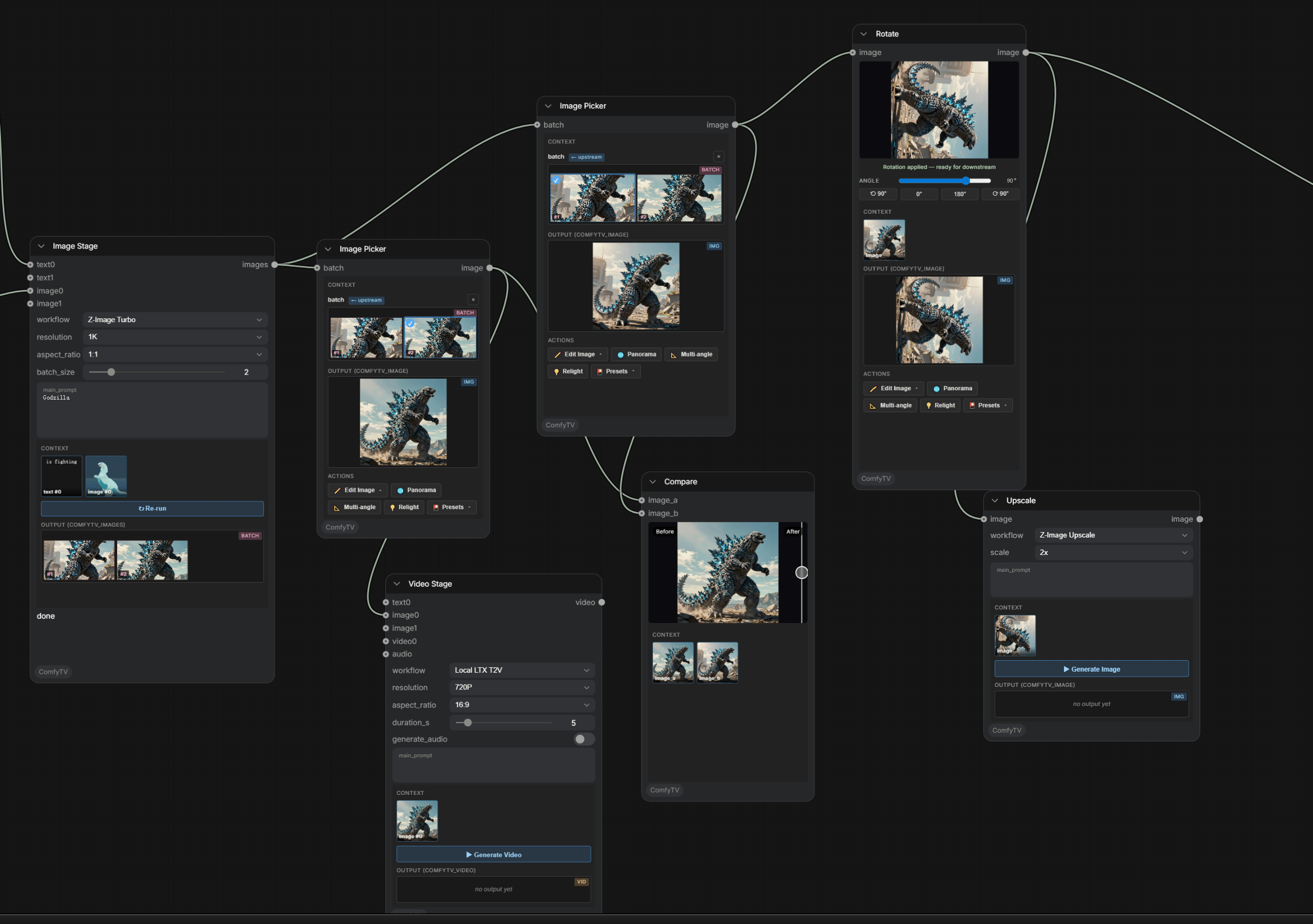
ComfyTV turns ComfyUI into a **TapNow / LibTV-style canvas app**. Every operation is its own node; results flow downstream automatically. Chain stages into a complete flow: generate → pick → edit → compose.
 ***
## Install
```bash theme={null}
cd ComfyUI/custom_nodes
git clone https://github.com/jtydhr88/ComfyTV
```
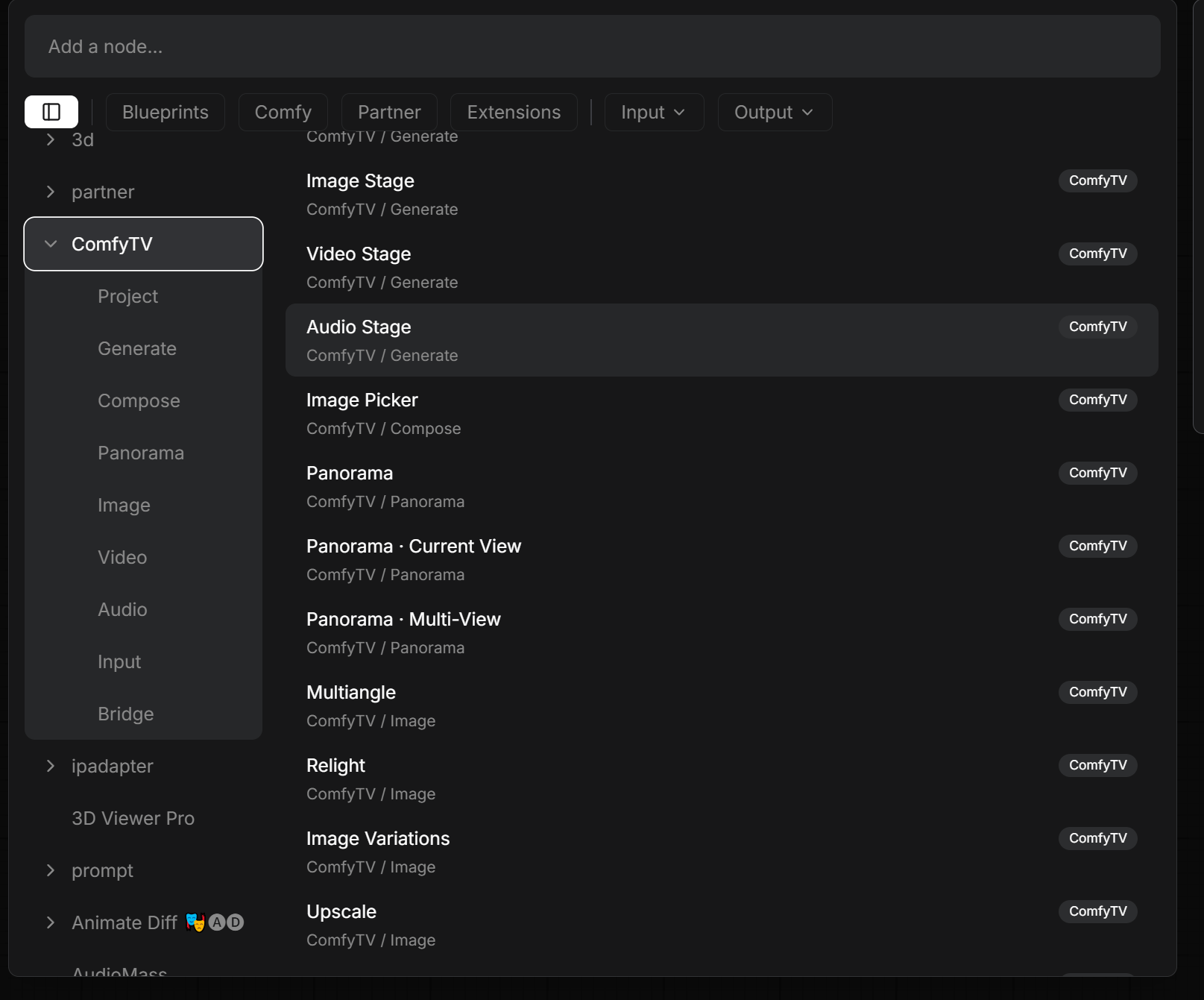
Restart ComfyUI. Open the **Add Node** menu (double-click the canvas or right-click) and look for the **`ComfyTV`** category. It's split into sub-menus: Project, Input, Generate, Image, Panorama, Video, Audio, Compose.
***
## Install
```bash theme={null}
cd ComfyUI/custom_nodes
git clone https://github.com/jtydhr88/ComfyTV
```
Restart ComfyUI. Open the **Add Node** menu (double-click the canvas or right-click) and look for the **`ComfyTV`** category. It's split into sub-menus: Project, Input, Generate, Image, Panorama, Video, Audio, Compose.
 ***
## The basics
### Each node has its own Run button
Most stages have a **▶ Run** button inside their panel. Clicking it runs *just that stage* — it does **not** re-run the whole graph. The result appears in the node's output preview.
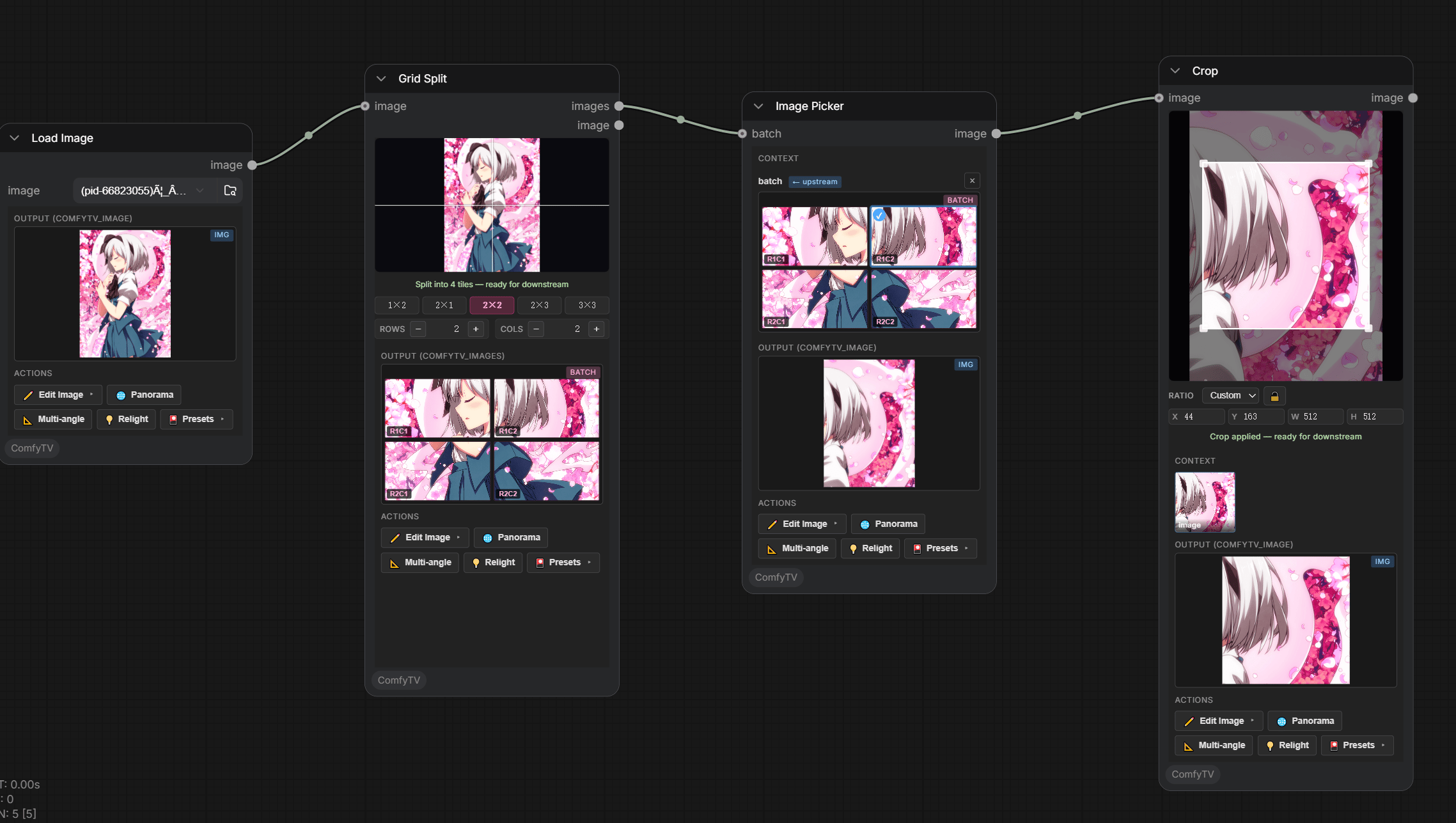
> Some stages (Crop, Rotate, Mirror, Grid Split, Panorama viewports) **have no Run button** — they work entirely in your browser and update instantly as you adjust them.
### Results flow downstream as snapshots
Once an upstream stage runs, its result is saved as a snapshot; downstream stages use that snapshot directly when they run, without re-running the upstream.
### Project selector
Drop a **Project** node to name/switch the current project. Everything you generate is filed under it and restored when you reload the workflow.
***
## Quick run
1. Add **Generate → Image Stage**.
2. Type a prompt in the node's text box (e.g. `a red apple on a wooden table`).
3. Pick a model in the **workflow** dropdown — start with **`Local SD1.5`**.
4. Click **▶ Run**.
***
## The basics
### Each node has its own Run button
Most stages have a **▶ Run** button inside their panel. Clicking it runs *just that stage* — it does **not** re-run the whole graph. The result appears in the node's output preview.
> Some stages (Crop, Rotate, Mirror, Grid Split, Panorama viewports) **have no Run button** — they work entirely in your browser and update instantly as you adjust them.
### Results flow downstream as snapshots
Once an upstream stage runs, its result is saved as a snapshot; downstream stages use that snapshot directly when they run, without re-running the upstream.
### Project selector
Drop a **Project** node to name/switch the current project. Everything you generate is filed under it and restored when you reload the workflow.
***
## Quick run
1. Add **Generate → Image Stage**.
2. Type a prompt in the node's text box (e.g. `a red apple on a wooden table`).
3. Pick a model in the **workflow** dropdown — start with **`Local SD1.5`**.
4. Click **▶ Run**.
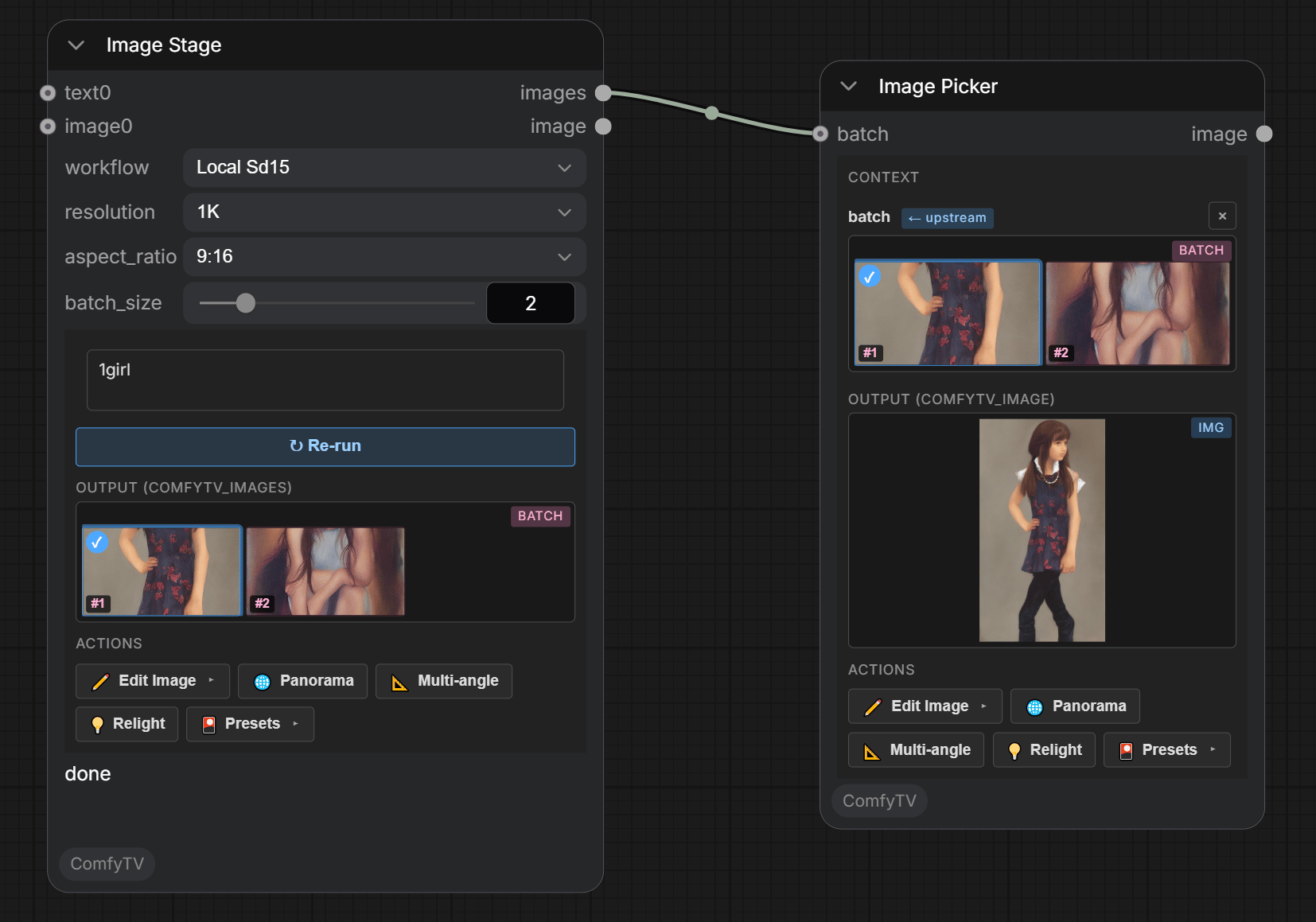 The Image Stage produces a **set of images** (a workflow can output more than one). The first time you Run it, ComfyTV **auto-adds an Image Picker** wired to its output.
### Pick a result
Click a thumbnail on the Image Stage itself, or on the auto-spawned Image Picker. Either way an **action toolbar** (`✏️ Edit`, `🌐 Panorama`, `📐 Multiangle`, …) appears next to the picked frame.
The Image Stage produces a **set of images** (a workflow can output more than one). The first time you Run it, ComfyTV **auto-adds an Image Picker** wired to its output.
### Pick a result
Click a thumbnail on the Image Stage itself, or on the auto-spawned Image Picker. Either way an **action toolbar** (`✏️ Edit`, `🌐 Panorama`, `📐 Multiangle`, …) appears next to the picked frame.
 ***
## Zoom into a preview
Hover any output image and use the **mouse wheel** to zoom (1×–6×), **drag** to pan, and **double-click** to reset. Works on every image output preview.
***
## Where to next
* [generate.md](/guides/generate) — generators (text / image / video / audio)
* [image-tools.md](/guides/image-tools) — crop, rotate, mirror, inpaint, erase, cutout, upscale, outpaint, grid split, variations, multi-angle
* [compose.md](/guides/compose) — Image Picker, A/B compare
***
## Zoom into a preview
Hover any output image and use the **mouse wheel** to zoom (1×–6×), **drag** to pan, and **double-click** to reset. Works on every image output preview.
***
## Where to next
* [generate.md](/guides/generate) — generators (text / image / video / audio)
* [image-tools.md](/guides/image-tools) — crop, rotate, mirror, inpaint, erase, cutout, upscale, outpaint, grid split, variations, multi-angle
* [compose.md](/guides/compose) — Image Picker, A/B compare